The Native Productivity Stack
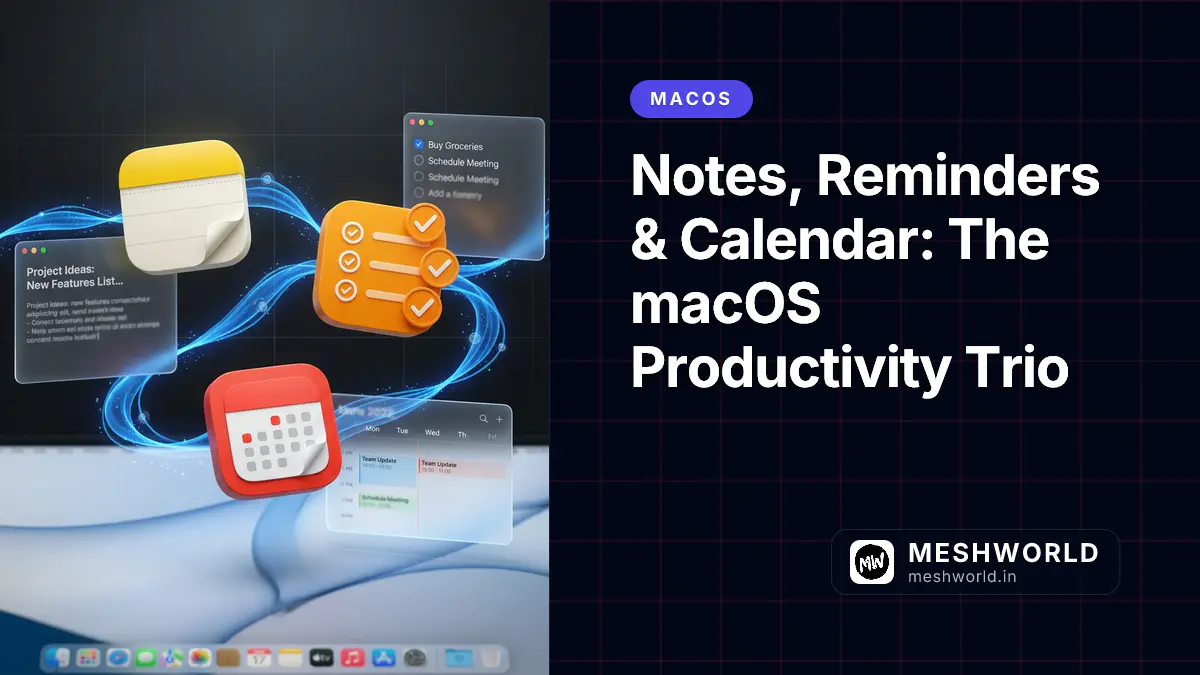
You don’t need expensive third-party apps to stay organized. macOS includes three powerful, fully integrated productivity tools:
- Notes — Your digital notebook with folders, tags, and rich formatting
- Reminders — Task management with lists, subtasks, and location alerts
- Calendar — Time management with multiple calendars and scheduling
Together, they handle capture, organization, task tracking, and scheduling—all syncing seamlessly across your Apple devices.
This guide covers advanced features that transform these simple apps into a productivity system.
Notes: Beyond Basic Notetaking
Notes has evolved from a simple text app into a powerful information manager with folders, tags, collaboration, and rich media support.
Organization System
Folders (for broad categories):
Notes/
├── Work/
│   ├── Projects/
│   ├── Meeting Notes/
│   └── Reference/
├── Personal/
│   ├── Ideas/
│   ├── Recipes/
│   └── Travel/
└── Archive/
Tags (for cross-cutting themes):
#urgent— Needs immediate attention#waiting— Blocked, waiting for someone#reference— Long-term useful info#idea— Future project seeds
Creating and Managing Folders
- Click New Folder button (bottom-left)
- Name the folder
- Drag notes into folders
Smart Folders with Tags:
- Click New Folder
- Select “Make into Smart Folder”
- Choose tags to include
- Notes with those tags appear automatically
Tags in Action
Add tags anywhere in a note:
Meeting with Design Team #work #urgent

Agenda:
- Review mockups
- Discuss timeline
- Assign tasks
Click any tag to see all notes with that tag across all folders.
Rich Formatting
Notes supports more than plain text:
| Format | How |
|---|---|
| Headings | Format > Heading, or ⌘ + Shift + H |
| Bold/Italic | ⌘ + B / ⌘ + I |
| Checklists | ⌘ + Shift + L |
| Tables | Format > Table |
| Code | Format > Monospaced |
Checklists That Actually Work
Use checklists for action items within notes:
Website Launch Checklist:
☐ Finalize homepage copy
☐ Test contact form
☐ Set up analytics
☐ Create social media accounts
☐ Schedule launch announcement
Features:
- Tap/click to check off
- Checked items move to bottom (optional)
- View > Show Checklist as Gallery — Visual progress view
Scanning and Attachments
Scan documents directly:
- Click camera button in note toolbar
- Select Scan Documents
- Use iPhone/iPad camera (Continuity Camera)
- Or use Mac’s connected scanner
File attachments:
- Drag any file into note
- PDFs display inline
- Images embed automatically
- Other files show as icons
Locked Notes
Protect sensitive information:
- Open note you want to lock
- Click lock icon in toolbar
- Set password (first time)
- Or use Touch ID/Face ID
What gets locked:
- Note content
- Attachments
- Images
What stays visible:
- Title (in note list)
- Date modified
Collaboration
Share notes for real-time collaboration:
- Click share button (top-right)
- Choose sharing method:
- Collaborate — Others can edit
- Send Copy — One-time snapshot
- Set permissions:
- Only invited people
- Anyone with link
- Send link
Changes sync instantly — see collaborators’ cursors and edits in real-time.
Quick Notes
Capture ideas instantly with Quick Notes:
From anywhere:
- Hot corner (configure in System Settings)
fn + Qkeyboard shortcut- From Safari: Share menu > Add to Quick Note
Quick Notes appear in a special folder and can be moved to permanent folders later.
Reminders: Task Management
Reminders has grown from a simple checklist into a full task manager with lists, subtasks, tags, locations, and smart lists.
List Organization
Create lists for different contexts:
My Lists:
├── Work
├── Personal
├── Shopping
├── Someday/Maybe
└── Projects
Creating Lists:
- Click Add List (bottom-left)
- Name it
- Choose color and icon
- Select iCloud or On My Mac
Subtasks and Groups
Break down complex tasks:
📝 Launch Website
   ☐ Write copy
   ☐ Design mockups
   ☐ Get approval
   ☐ Build site
   ☐ Test thoroughly
   ☐ Deploy
Creating subtasks:
- Create main reminder
- Drag other reminders onto it
- They indent as subtasks
Or:
- Create reminder
- Tap/click i button
- Add Subtasks
Due Dates and Times
Set when tasks need completion:
| Input | Result |
|---|---|
| “today” | Due today |
| “tomorrow” | Due tomorrow |
| “next Tuesday” | Specific day |
| “in 3 days” | Relative date |
| “5pm” | Specific time |
Repeating reminders:
- Open reminder details (click i)
- Set Repeat
- Choose: Daily, Weekly, Monthly, Custom
Location-Based Reminders
Get reminded when you arrive or leave:
- Create reminder
- Click i button
- Turn on Location
- Choose:
- Current Location
- Custom Location (address)
- Getting in Car (Bluetooth trigger)
- Getting out of Car
Examples:
- “Buy milk” when leaving work
- “Call Mom” when getting home
- “Check tire pressure” when getting in car
Smart Lists
Create filtered views of your reminders:
- Click Add List
- Select “Make into Smart List”
- Choose filters:
- Tags
- Due dates
- Priority
- Lists to include
Useful Smart Lists:
| Name | Filters |
|---|---|
| Today | Due today |
| Urgent | High priority |
| Waiting | Tag: waiting |
| Work | List: Work |
Priority Flags
Mark importance with priority:
- High — Red flag (3 exclamation marks)
- Medium — Orange flag (2 marks)
- Low — Blue flag (1 mark)
- None — No flag
Sort by priority to surface urgent tasks.
Tags in Reminders
Same system as Notes:
Submit expense report #work #urgent
Call plumber #personal #waiting
Tags work across all your lists—search a tag to see related tasks everywhere.
Calendar: Time Management
Calendar manages your time. Use it for more than just meetings—schedule your focused work, personal time, and recurring routines.
Calendar Types
Create separate calendars for different life areas:
Calendars:
├── Work (blue)
├── Meetings (red)
├── Deep Work (purple)
├── Personal (green)
├── Family (orange)
└── Birthdays (brown)
Benefits:
- Color-coded visual distinction
- Toggle visibility (focus on work, hide personal)
- Different notification settings per calendar
- Share specific calendars (share work, keep personal private)
Time Blocking
Schedule your actual work, not just meetings:
Monday:
9:00-10:00  📧 Email processing
10:00-12:00 🔨 Deep work: Project Alpha
12:00-1:00  🍽️ Lunch
1:00-2:00   📞 Meeting: Team standup
2:00-4:00   🔨 Deep work: Project Alpha
4:00-5:00   📋 Admin tasks
How:
- Create event
- Set as Busy (not Free)
- Color-code by type
- Add location if needed
Recurring Events
Set up routines once:
- Create event
- Click repeat button
- Choose frequency:
- Daily
- Weekly (select days of week)
- Monthly
- Yearly
- Custom (every 2 weeks, etc.)
Examples:
- Weekly planning (Monday 9am)
- Exercise (Mon/Wed/Fri 6pm)
- Review finances (1st of month)
- Team lunch (Fridays 12pm)
Calendar Invitations
Manage meeting invitations:
Receiving:
- Invitation appears in Inbox (sidebar)
- Click Accept, Maybe, or Decline
- Add notes before responding
- Propose new time if needed
Sending:
- Create event
- Add invitees in Add Invitees field
- Click Send
- Track responses in event details
Multiple Time Zones
Work across time zones:
- Calendar > Settings
- Turn on “Show time in multiple time zones”
- Add time zones you work with
Time zone labels appear in Day/Week views.
Calendar Sharing
Share calendars with family or team:
- Right-click calendar in sidebar
- Select Share Calendar
- Choose:
- View only — See events
- View and edit — Add/modify events
- Send to specific people or create link
Integration Between Apps
The trio works together seamlessly:
Notes + Reminders
Convert notes to tasks:
- In Notes, select text
- Right-click > Create Reminder
- Reminder created with link back to note
Or manually:
In Notes:
"Need to follow up on proposal"

Select → Share → Reminders
Reminders + Calendar
Time-block your tasks:
- In Reminders, click i on any reminder
- Add Due Date
- It appears on Calendar that day
Calendar + Reminders
Create reminders from calendar:
- Right-click any event
- Create Reminder
- Reminder created with link to event
All Three: Siri Integration
Use Siri to add to any app:
| Say This | Result |
|---|---|
| “Remind me to call John tomorrow” | Creates reminder |
| “Note that idea for the app” | Creates note |
| “Schedule meeting with team Tuesday 2pm” | Creates calendar event |
| “Remind me to buy milk when I leave work” | Location reminder |
Sync and Backup
All three apps sync via iCloud:
Requirements:
- Same Apple ID on all devices
- iCloud enabled (Settings > Apple ID > iCloud)
- Notes, Reminders, Calendars toggled ON
Offline access:
- Notes and Reminders work offline
- Changes sync when reconnected
- Calendar needs connection for new invites
Backup:
- iCloud backs up automatically
- For local backup: Export calendars as .ics files
- Notes: No direct export, but iCloud backup covers it
Quick Reference: Shortcuts
Notes
| Shortcut | Action |
|---|---|
⌘ + N | New note |
⌘ + Shift + L | Checklist |
⌘ + Shift + T | Today (date stamp) |
⌘ + B/I/U | Bold/Italic/Underline |
⌘ + Shift + H | Heading |
Reminders
| Shortcut | Action |
|---|---|
⌘ + N | New reminder |
Space | Complete/uncomplete |
⌘ + 1/2/3 | Priority (none/low/high) |
⌘ + ] | Indent (make subtask) |
⌘ + [ | Outdent |
Calendar
| Shortcut | Action |
|---|---|
⌘ + N | New event |
⌘ + T | Go to today |
1-5 | Switch view (Day/Week/Month/Year/List) |
⌘ + →/← | Next/previous |
⌘ + F | Search |
Related Articles
Complete your productivity setup:
- Keyboard Mastery on macOS — Speed up data entry
- Automator & Shortcuts — Automate repetitive tasks
- Safari Power User — Research and reference management
- The Connected Mac — Access notes across devices