Work Smarter, Not Harder
Repetitive tasks drain productivity. Renaming 100 files, resizing dozens of images, organizing downloads, or converting document formats—done manually, these eat hours of your week.
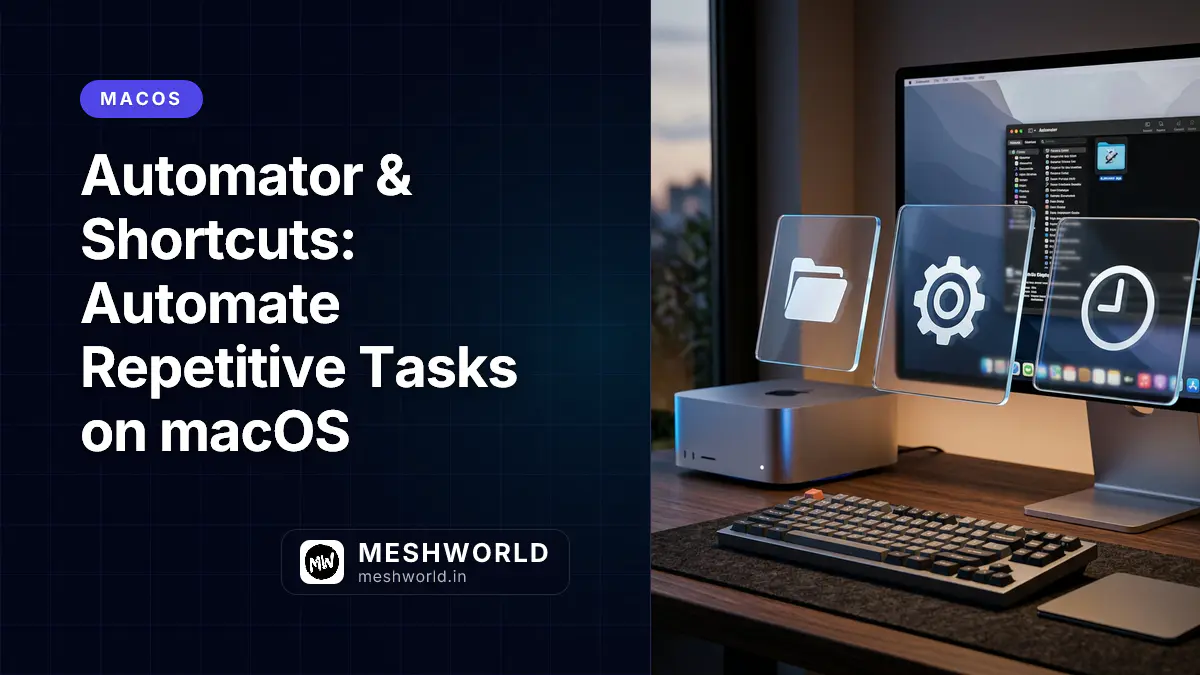
macOS includes two powerful automation tools:
- Automator — Classic automation for files, folders, and apps
- Shortcuts — Modern, visual automation (iOS/macOS unified)
Together, they handle everything from simple one-click actions to complex multi-step workflows.
This guide covers practical automations you can build today—no programming required.
Automator vs. Shortcuts: Which to Use?
| Feature | Automator | Shortcuts |
|---|---|---|
| Interface | Drag-and-drop workflow builder | Visual block-based editor |
| Age | Legacy (macOS 10.4+) | Modern (macOS Monterey+) |
| iOS support | ❌ No | ✅ Yes (syncs with iPhone/iPad) |
| Triggers | Folder actions, services, apps | Manual, scheduled, location-based |
| Complexity | Better for file operations | Better for app integrations |
| Sharing | Limited | Easy sharing via iCloud |
Rule of thumb:
- File/folder operations → Automator
- App integrations, iOS sync → Shortcuts
Automator: Essential Workflows
Automator creates workflows that combine multiple actions into one.
Opening Automator
- Press
⌘ + Space(Spotlight) - Type “Automator”
- Press Enter
Or find it in Applications folder.
Creating Your First Workflow
- Open Automator
- Select New Document
- Choose workflow type:
- Workflow — Run within Automator
- Application — Standalone app you can run
- Quick Action — Right-click menu item
- Folder Action — Triggers when files added to folder
Workflow 1: Batch Rename Files
Automatically rename files with consistent naming:
- Create New Folder Action
- At top, select “Choose folder” → pick Downloads folder
- In actions sidebar, find Files & Folders
- Drag “Rename Finder Items” to workflow
- Configure:
- Add Date or Time → Append timestamp
- Format:
Current Date - Original Name
- Save
Now every file added to Downloads gets timestamp prepended automatically.
Workflow 2: Image Resizer Quick Action
Right-click any image to resize it:
- Create New Quick Action
- Workflow receives: image files in Finder
- Drag “Scale Images” from Photos actions
- Set: To Size → 1200 pixels (width)
- Drag “Move Finder Items” from Files & Folders
- Set: To: Desktop (creates resized copies on Desktop)
- Save as “Resize to 1200px”
Use: Right-click any image → Quick Actions > Resize to 1200px
Workflow 3: PDF from Selected Images
Combine multiple images into one PDF via right-click:
- Create New Quick Action
- Workflow receives: image files in Finder
- Drag “New PDF from Images” from PDFs actions
- Set: Output filename and location
- Save as “Create PDF”
Use: Select images in Finder → Right-click → Quick Actions > Create PDF
Workflow 4: Auto-Organize Downloads
Sort Downloads by file type automatically:
- Create New Folder Action
- Select Downloads folder
- Add “Filter Finder Items”
- All of following: Extension is pdf
- Add “Move Finder Items”
- To: Downloads/PDFs (create this folder first)
- Duplicate this for each file type (Images, Videos, Documents)
- Save
Result: Files automatically sort into subfolders by type.
Workflow 5: Extract Audio from Video
Convert video files to audio (MP3) via right-click:
- Create New Quick Action
- Workflow receives: movie files in Finder
- Drag “Encode Media” from Media actions
- Set: Setting: Audio Only
- Save as “Extract Audio”
Use: Right-click video → Quick Actions > Extract Audio
Shortcuts: Modern Automation
Shortcuts (introduced in macOS Monterey) offers iOS integration and easier sharing.
Opening Shortcuts
- Press
⌘ + Space - Type “Shortcuts”
- Or find in Applications
Creating Your First Shortcut
- Click + (New Shortcut)
- Add actions from the sidebar
- Click … (top-right) to:
- Rename
- Choose icon color
- Add to Dock
- Set keyboard shortcut
- Click Done
Shortcut 1: Morning Routine
One tap to start your day:
- Create new shortcut
- Add actions:
- Open App → Weather
- Open App → Calendar
- Open App → Mail
- Show Notification → “Good morning! ☕️”
- Name: “Morning Routine”
- Add to Dock for one-click access
Shortcut 2: Meeting Prep
Prepare for video calls instantly:
- Create new shortcut
- Add actions:
- Set Focus → Do Not Disturb (turn on)
- Set Volume → 80%
- Open App → Calendar
- Open URL → Your meeting link
- Show Notification → “Meeting starting!”
- Name: “Meeting Prep”
Shortcut 3: Save Webpage to PDF
Convert any webpage to PDF:
- Create new shortcut
- Add “Get Current Safari Page”
- Add “Make PDF”
- Add “Save File” → choose location
- Name: “Save Page as PDF”
Use: While browsing, run shortcut → PDF saves automatically.
Shortcut 4: Clipboard Manager
Save clipboard history:
- Create new shortcut
- Add “Get Clipboard”
- Add “Append to File”
- Set: File Path → Documents/clipboard_history.txt
- Name: “Save to Clipboard History”
Use: Copy text → Run shortcut → permanently saved.
Shortcut 5: Window Tiler
Arrange windows in specific layouts:
- Create new shortcut
- Add “Get Current Window”
- Add “Resize Window” → Position: Left Half
- Add “Get Specific App” (e.g., Finder)
- Add “Resize Window” → Position: Right Half
- Name: “Split Screen Setup”
Advanced Automator Techniques
Variables and Logic
Automator supports basic logic:
- “Ask for Finder Items” — Prompt user to select files
- “Filter Finder Items” — Process only matching files
- “View Results” — Preview before proceeding
Example: Ask for images → Filter large files only → Show results → Confirm before resizing
Recording Actions
Automator can record your mouse and keyboard actions:
- Open Automator
- Create New Workflow
- Click Record button
- Perform the actions you want to automate
- Click Stop
- Save as application
Note: Recording is fragile—coordinates matter. Best for consistent UI layouts.
Shell Script Integration
For power users, add shell scripts to Automator:
- Find “Run Shell Script” in actions
- Drag into workflow
- Write bash/zsh commands
- Pass input as arguments
Example: Batch convert images using ImageMagick commands.
Sharing Automations
Export Automator Workflows
- File > Save
- Choose format:
- Workflow — Opens in Automator
- Application — Double-click to run standalone
Share: Send the .workflow or .app file to others.
Share Shortcuts
- Open shortcut
- Click … (top-right)
- Select “Share”
- Choose method (AirDrop, Messages, etc.)
Shortcuts sync via iCloud — automatically available on all your devices.
Find Community Shortcuts
Apple maintains a Shortcuts gallery:
- Open Shortcuts app
- Click “Gallery” (left sidebar)
- Browse categories
- Click “Get Shortcut” to add
Popular categories: Photography, Productivity, Health, Education
Automation Ideas by Profession
Writers/Journalists
| Automation | What It Does |
|---|---|
| Distraction-Free Mode | Enable DND, hide Dock, open writing app |
| Article Archiver | Save webpage to PDF + add to Notes |
| Word Count Tracker | Daily writing stats logged to spreadsheet |
Developers
| Automation | What It Does |
|---|---|
| Project Opener | Open IDE, terminal, browser with project tabs |
| Git Commit Template | Fill commit message with template |
| Server Monitor | Check server status, notify if down |
Designers
| Automation | What It Does |
|---|---|
| Asset Exporter | Batch export Figma/Sketch layers |
| Color Palette Saver | Extract colors from image to text file |
| Portfolio Backup | Copy project files to cloud weekly |
Executives
| Automation | What It Does |
|---|---|
| Daily Briefing | Open calendar, email, stocks, news |
| Focus Sessions | Enable DND for 25min (Pomodoro) |
| Meeting Recorder | Start recording, open notes, set timer |
Quick Reference: Automation Types
| Type | Best For | How to Access |
|---|---|---|
| Quick Action | Right-click menu | Finder > right-click file |
| Folder Action | Auto-process files | Files added to watched folder |
| Application | Standalone tool | Double-click to run |
| Service | System-wide | Any app’s menu |
| Calendar Alarm | Time-based | Trigger at scheduled time |
| Print Plugin | Post-print processing | Print dialog options |
Troubleshooting
Automator Workflow Not Running
- Check input type matches (files vs. text vs. images)
- Verify destination folder exists
- Test step-by-step using View > Log
Shortcuts Not Appearing on iPhone
- Ensure same Apple ID on both devices
- Check iCloud sync enabled (Settings > Apple ID > iCloud > Shortcuts)
- Restart both devices
Folder Actions Trigger Unexpectedly
- Check if multiple folder actions watch same folder
- Review filter conditions
- Consider adding “Ask for Confirmation” step
Related Articles
Master your Mac:
- Keyboard Mastery on macOS — Master shortcuts and text snippets
- Finder Mastery: 15 Power User Tricks — Navigate files faster than ever
- Master Mission Control — Virtual desktops and Space management
- Hidden macOS Settings — Personalize your Mac beyond the obvious