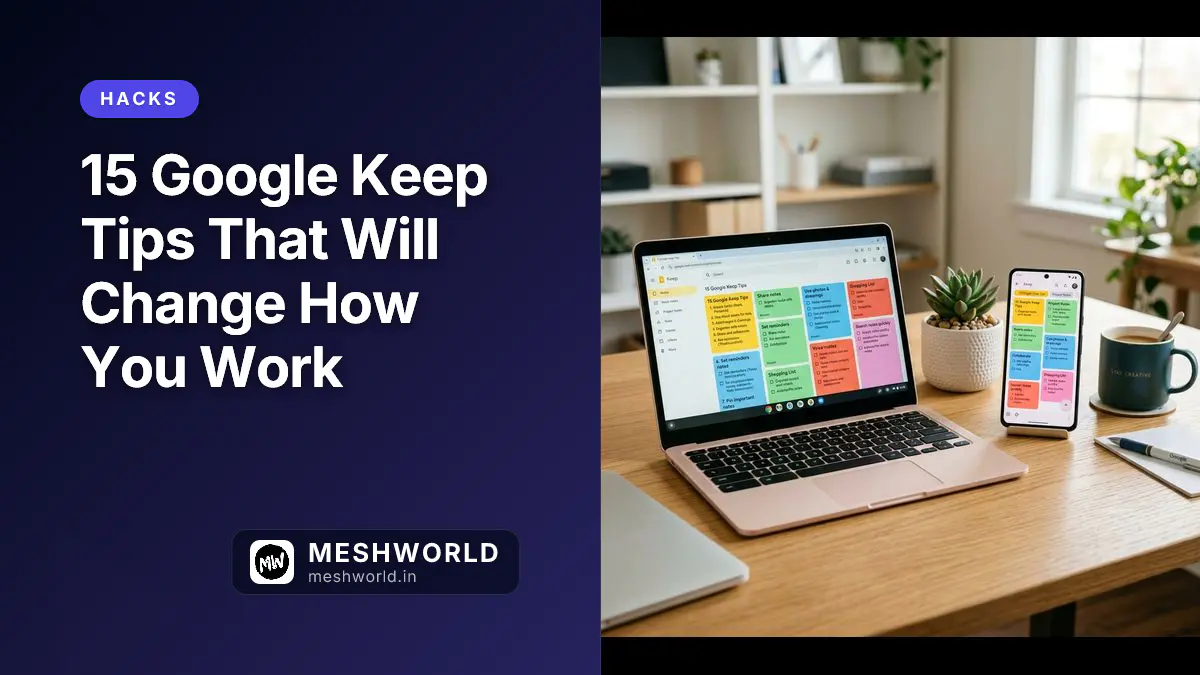
You’re still manually typing grocery lists while everyone else is using AI to generate them in seconds. Google Keep has evolved significantly, and if you’re only using it for basic note capture, you’re missing out on features that can transform how you organize your life.
From Gemini-powered list generation to location-based reminders that actually work, here’s how to master Google Keep in 2026.
Instant Note Capture with URL Shortcuts
The fastest way to create a note isn’t opening the app—it’s typing directly in your browser address bar. Type note.new or keep.new and press Enter, and a fresh note opens instantly in your browser.
This shortcut works across Chrome on desktop and Chrome for Android, making it the quickest capture method when inspiration strikes. No clicks, no app switching, just immediate note creation.
AI-Powered List Creation with Gemini
Google Keep now integrates with Gemini to generate lists from simple prompts. Tap “Help me create a list” at the bottom of the app, describe what you need (“packing list for weekend trip to Goa”), and Gemini generates a checklist for you.
You can edit the generated list before inserting, tweak items, or regenerate if the suggestions miss the mark. It’s not perfect, but it saves time when you’re staring at a blank note wondering what to include.
Voice Memos with Auto-Transcription
Can’t type while walking, cooking, or driving? Tap the + button in a note and select “Recording” to capture a voice memo. Keep records your audio and automatically inserts a transcript below it.
Later, you can read back what you said or play the audio. The transcription makes your voice notes searchable too—so finding that great idea you recorded last week is as easy as searching for keywords.
Extract Text from Photos with OCR
One of Keep’s most underrated features is optical character recognition. Snap a photo of a whiteboard, handwritten recipe, or printed document, add it to a note, then tap the three-dot menu and select “Grab image text.”
Keep scans the image and pastes extracted text directly into your note. That handwritten meeting notes photo becomes searchable, editable text in seconds.
Labels Work Like Hashtags
Instead of navigating through menus to add labels, simply type “#labelname” anywhere in your note. For example, type “#work” or “#groceries” to instantly create or assign a label.
Labels function like tags, allowing multiple per note for cross-categorization. Search for a label to filter all notes with that tag, or combine label searches with keyword searches for laser-precise results.
Color-Code Your Way to Visual Clarity
Colors turn Keep from a text wall into a visual dashboard. Assign colors to notes based on category: green for personal, blue for work, yellow for errands, red for urgent.
Some users take this further with themed backgrounds available in Keep—grocery-themed, recipe-themed, or place-themed images that make specific note types instantly recognizable at a glance.
Pin Important Notes Strategically
Pinning keeps essential notes at the top of your Keep feed, but don’t pin everything. Power users treat pinned notes as a high-priority dashboard with a strict limit—usually around 10 notes.
Unpin notes the moment a project wraps up. The goal is active items only, not a pinned archive of completed work.
Location-Based Reminders That Actually Work
Time-based reminders are useful, but location-based reminders solve real problems. Create a note for grocery shopping, tap the bell icon, and set a location like your local supermarket. Keep reminds you when you arrive.
This works for office reminders, pharmacy stops, or any task tied to a physical place. Unlike calendar events that ignore where you are, Keep’s location triggers match your actual movement.
Collaborate in Real-Time
Google Keep isn’t just for solo use—share notes with others for live collaboration. Tap the three-dot menu, select “Collaborator,” enter an email address, and send the invite.
Everyone with access sees changes in real-time, making Keep excellent for shared household lists, project coordination, or team task tracking. No more “I thought you were handling that” conversations.
Export to Google Docs for Expansion
When a quick note becomes something bigger, send it directly to Google Docs. Tap the three-dot menu, select “Send,” then choose “Copy to Google Docs.” Keep creates a new document with all formatting intact.
This is perfect for turning brainstorming fragments into full articles, expanding meeting notes into documentation, or moving drafted content to a more robust editor.
Rich Text Formatting (Android)
Long limited to plain text, Keep now supports rich formatting on Android. Format text and tap the “A” icon in the toolbar to access bold, italicize, headers, and underlining.
Formatting helps break up long notes visually, making them easier to scan. Note that formatting support varies—desktop web still has limited options compared to Android.
Use Sublists for Complex Checklists
Checklists work better with hierarchy. Create a main task, then drag items to the right to create indented sub-items, or use Ctrl+] on desktop.
This approach groups related tasks together—“Grocery shopping” with “fruits,” “vegetables,” and “dairy” as indented items—without creating separate notes for every category.
Quick Capture Widget
Add a Keep widget to your home screen for one-tap note creation. Long-press your home screen, select Widgets, find the Keep widget, and drag it to your preferred spot.
Choose your default capture type: voice note, text, checklist, photo, or drawing. Now capturing ideas takes a single tap, not app opening and navigation.
Archive Ruthlessly
Think of your main Keep feed as an inbox—archive notes once you’ve acted on them. Archive moves notes out of your main view while keeping them searchable and accessible.
Notes tagged “Reference” or “Research” go straight to archive after use. Your main feed stays focused on active tasks, while nothing is ever truly deleted or lost.
Integrate with Google Workspace
Keep connects smoothly with other Google tools. Use the Keep sidebar in Gmail to reference notes while composing emails. Link notes to Calendar events for meeting agendas that travel with your schedule.
The Google Keep Chrome extension captures web articles, quotes, and snippets directly. Use a “Clipped” label for these quick saves, and disable rich link previews in settings for a cleaner text-only capture.
Version History on Desktop
Accidentally overwrite something important? On the desktop version, open a note’s three-dot menu and select “Version History” to see previous versions. Restore an older version if needed.
This feature is currently desktop-only—mobile users don’t have version history access, so desktop becomes important for recovering from major editing mistakes.
Keyboard Shortcuts for Speed
On desktop, keyboard shortcuts speed up everything. Press “c” for new note, “l” for new list, “j” and “k” to navigate between notes. Format with Ctrl+b for bold, Ctrl+i for italic.
Access the full shortcut list by clicking the gear icon and selecting “Keyboard Shortcuts.” These shortcuts make Keep feel less like a basic app and more like a power-user tool.
Author: Nirav is a Systems Specialist at MeshWorld India, focusing on practical productivity strategies that help knowledge workers maximize their digital tools.