


Adding visual content makes documentation, guides, and articles significantly easier to understand. Markdown provides a simple, direct syntax for embedding images, which mirrors link syntax but starts with an exclamation point. This guide explains how to format local and remote images, add hover tooltips, create clickable linked images, and write descriptive alt text for optimal SEO and accessibility.
How to Write Basic Image Syntax in Markdown?
To embed an image in Markdown, start with an exclamation mark !, followed by square brackets [] containing the alt text, and parentheses () containing the image URL or path.
!: Tells the parser to render an image instead of a text link.[]: Contains the alt text (description read by screen readers if the image fails to load).(): Holds the source path (either a remote URL or local path).
Here is a practical example using an Unsplash image URL:
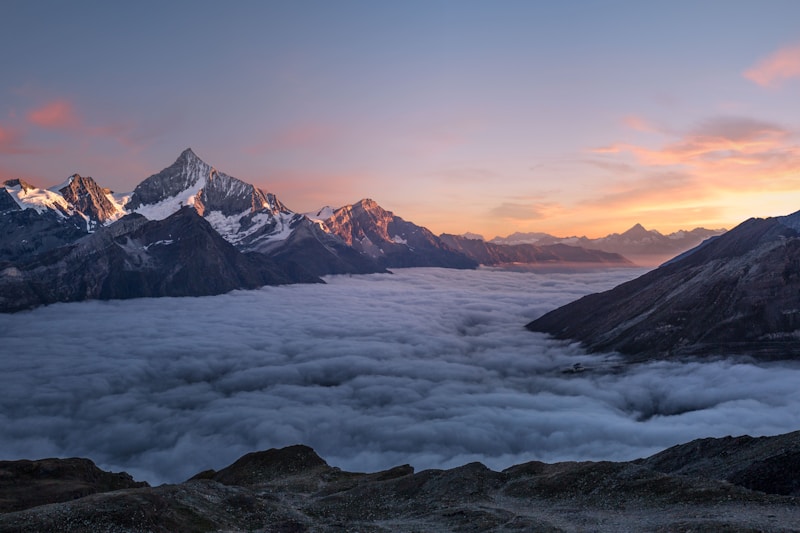This translates to the following HTML code:
<img src="https://images.unsplash.com/photo-1506905925346-21bda4d32df4?w=800" alt="A beautiful sunset" />How to Link Local Images in Your Project?
For images stored directly within your project directories, use relative paths. Relative paths point to the image relative to the directory containing your Markdown file.

./images/logo.pngpoints to a file in animages/folder inside the current directory.../../assets/diagram.pngmoves two levels up to find an asset folder.
How to Add Hover Titles to Markdown Images?
Like hyperlinks, you can append an optional hover title to an image. The title appears as a small tooltip when a user hovers their cursor over the image.
To add a title, place the title text in double quotes "" immediately after the image URL in the parentheses. Remember to leave a single space between the URL and the title.
How to Create Clickable Linked Images?
You can wrap an image inside a hyperlink so that clicking the image redirects the user to another page or website. To do this, place the entire image syntax inside the square brackets of a standard link.
[](link-url)For example, to link a company logo to its homepage:
[](https://meshworld.in/)How to Use Reference-Style Images?
If your document contains many images, cluttering paragraphs with long image URLs can make your raw Markdown code difficult to read. Reference-style syntax lets you define image variables in the text, and link the actual URLs at the bottom of the file.
Here is the first chart: ![Chart A][chart-1]

And here is the second: ![Chart B][chart-2]

[chart-1]: ./images/chart-a.png "System analytics data"
[chart-2]: ./images/chart-b.png "User retention data"Summary Checklist
- Use the
template to embed standard images. - Reference local assets using relative paths (
./images/cover.png). - Create clickable images by nesting the image syntax inside a link template
[](link). - Add titles in quotes
(URL "Title")to show hover tooltips. - Always write descriptive alt text for accessibility and search optimization.
Frequently Asked Questions
How do I resize images in Markdown?
Standard Markdown does not support image resizing (such as setting width or height attributes). To resize an image, you must write raw HTML <img> tags instead: <img src="logo.png" width="200" height="100" />.
Can I center images in Markdown?
Plain Markdown does not support image alignment. You can center an image by wrapping the image tag in a <div> with text-align: center: <div style="text-align: center;"><img src="image.png" /></div>.
What image file formats are supported?
Markdown supports any standard web image format that browser engines can render, including PNG, JPEG, WEBP, GIF, and SVG.
What to Read Next
- Using Raw HTML Inside Markdown — Learn the block-vs-inline HTML rules behind the resizing and centering techniques above.
- Tables in Markdown - Create & Format Data — Present comparisons and structured data using simple GFM tables.