PDFs are the cockroaches of the digital world. They refuse to die, they are incredibly stubborn to edit, and manually clicking through a GUI tool to merge or clean them at 6
PM on a Friday is a special kind of developer torture. You do not need expensive Acrobat subscriptions. With a bit of Python and the right libraries, you can build a custom document processing pipeline that handles these tasks in seconds.The Friday Afternoon PDF Pipeline
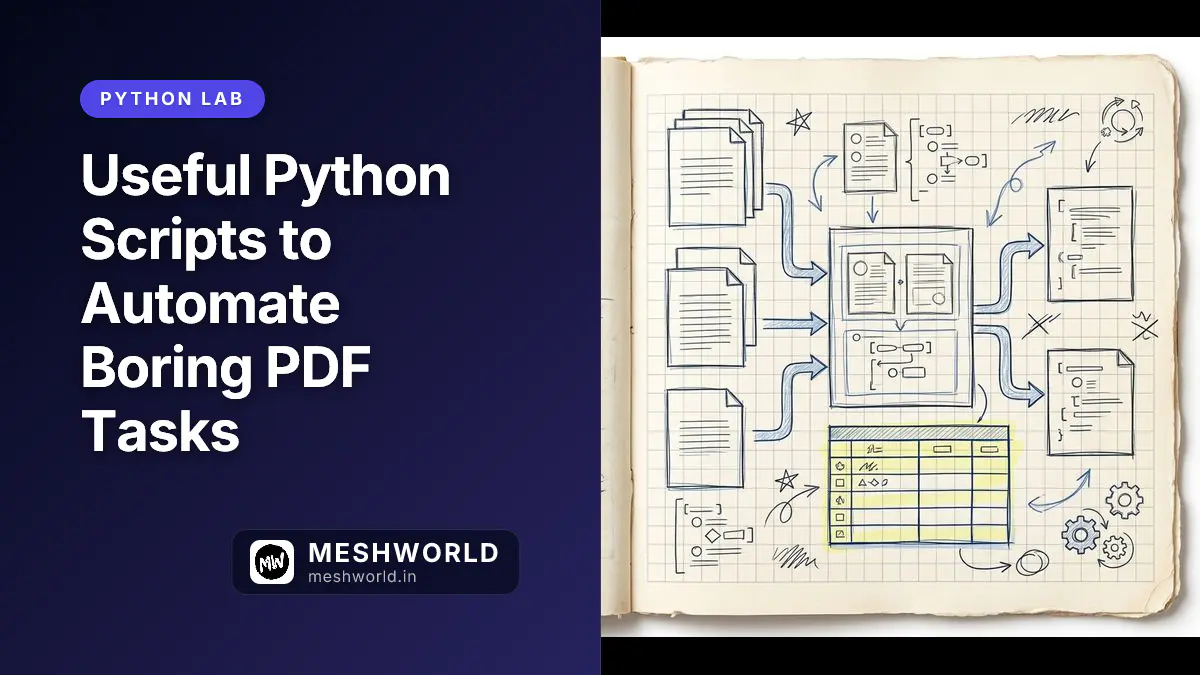
Before we write code, let’s look at how these automation tools work together. Imagine a typical billing workflow: raw client files arrive, get verified, stamped, sanitized of private data, and cataloged.
Figure 1: Document Flow Architecture
                       ┌─────────────────────────┐
                       │   Raw Incoming PDFs     │
                       └────────────┬────────────┘
                                    │
                                    ▼
                       ┌─────────────────────────┐
                       │  1. Merge & Split Tool  │ ──▶ Sorts & extracts page ranges
                       └────────────┬────────────┘
                                    │
                                    ▼
                       ┌─────────────────────────┐
                       │ 2. Text & Table Extractor│ ──▶ Pulls CSV/Markdown records
                       └────────────┬────────────┘
                                    │
                                    ▼
                       ┌─────────────────────────┐
                       │ 3. Watermarker / Stamp  │ ──▶ Applies page numbers & draft seals
                       └────────────┬────────────┘
                                    │
                                    ▼
                       ┌─────────────────────────┐
                       │ 4. Redaction Engine     │ ──▶ Scrubs credit cards & private info
                       └────────────┬────────────┘
                                    │
                                    ▼
                       ┌─────────────────────────┐
                       │ 5. Directory Inventory  │ ──▶ Generates final CSV audit sheet
                       └─────────────────────────┘
Below is the complete toolkit to build this pipeline yourself.
Prerequisites
Before running these scripts, make sure you have Python 3.8+ installed. We will use a few specific libraries for document surgery, layout parsing, drawing, and binary-level data editing:
# Set up a virtual environment and install dependencies
pip install pypdf pdfplumber reportlab pymupdf
1. Merging and Splitting: The File Jigsaw
The Scenario: Kabir runs client relations for a regional shipping agency. Every Friday, he gets 40 separate PDF delivery slips from various field drivers. Previously, he had to open an online converter, upload them one by one, wait for the server, and download the merged file—hoping he didn’t leak customer addresses to a random site.
This script replaces that manual chore. It works in two directions: combining folders of PDFs or splitting massive documents into bite-sized segments.
Figure 2: File Surgery Logic
Merge Mode:
  [File A.pdf] ──┐
  [File B.pdf] ──┼──▶ [pypdf.PdfMerger] ──▶ [Combined_Report.pdf]
  [File C.pdf] ──┘

Split Mode:
                              ┌──▶ [Segment_1 (Pages 1-5).pdf]
  [Huge_Document.pdf] ──▶ Page Slicing ┼──▶ [Segment_2 (Pages 6-10).pdf]
                              └──▶ [Segment_3 (Pages 11-15).pdf]
Here is the CLI tool for merging or splitting files:
import os
import argparse
from pypdf import PdfMerger, PdfReader, PdfWriter

def merge_pdfs(input_dir, output_path):
    """Combines all PDFs in a directory sorted alphabetically."""
    merger = PdfMerger()
    # Get all PDF files in the target directory
    files = sorted([f for f in os.listdir(input_dir) if f.lower().endswith('.pdf')])

    if not files:
        print(f"No PDF files found in {input_dir}")
        return

    print(f"Merging {len(files)} files...")
    for file in files:
        full_path = os.path.join(input_dir, file)
        merger.append(full_path)
        print(f"-> Added: {file}")

    merger.write(output_path)
    merger.close()
    print(f"Successfully created: {output_path}")

def split_pdf(input_file, output_dir, step=5):
    """Slices a single PDF into smaller files of N pages each."""
    if not os.path.exists(output_dir):
        os.makedirs(output_dir)

    reader = PdfReader(input_file)
    total_pages = len(reader.pages)
    print(f"Splitting {input_file} ({total_pages} total pages) into {step}-page chunks...")

    for start_idx in range(0, total_pages, step):
        writer = PdfWriter()
        end_idx = min(start_idx + step, total_pages)

        # Add the range of pages to our slice
        for page_num in range(start_idx, end_idx):
            writer.add_page(reader.pages[page_num])

        filename = f"split_chunk_{start_idx + 1}_to_{end_idx}.pdf"
        output_path = os.path.join(output_dir, filename)

        with open(output_path, "wb") as f:
            writer.write(f)
        print(f"-> Saved: {filename}")

if __name__ == "__main__":
    parser = argparse.ArgumentParser(description="Merge or Split PDFs.")
    parser.add_argument("--mode", choices=["merge", "split"], required=True)
    parser.add_argument("--input", required=True, help="Input folder for merge, or file path for split")
    parser.add_argument("--output", required=True, help="Output file path for merge, or output folder for split")
    parser.add_argument("--step", type=int, default=5, help="Pages per file in split mode")

    args = parser.parse_args()

    if args.mode == "merge":
        merge_pdfs(args.input, args.output)
    elif args.mode == "split":
        split_pdf(args.input, args.output, args.step)
2. Structured Extraction: Freeing Trapped Tables
The Scenario: Kabir’s finance team receives weekly billing summaries as PDFs. The summaries look like clean spreadsheets, but copying them directly results in a jumbled mess of text wrapped in weird line breaks. The team was spending hours re-typing numbers into Excel.
This script bypasses standard copy-paste issues. It looks at the visual grid layout of the PDF, identifies the bounding boxes of tables, and exports them directly into structured CSV spreadsheets.
Figure 3: Extraction Strategy
  [Raw PDF Page]
        │
        ├─▶ [pdfplumber table finder] ──▶ Analyzes intersecting grid lines
        │                                         │
        │                                         ▼
        │                               [Cleaned Row Data]
        │                                         │
        │                                         ▼
        └─▶ [pypdf text extractor] ─────▶ [Raw Text Block (Markdown)]
Here is how we extract text and grid data side by side:
import csv
import os
import pdfplumber

def extract_tables_and_text(pdf_path, output_dir):
    """Pulls text into Markdown and extracts tables to individual CSVs."""
    if not os.path.exists(output_dir):
        os.makedirs(output_dir)

    base_name = os.path.splitext(os.path.basename(pdf_path))[0]
    md_content = []

    with pdfplumber.open(pdf_path) as pdf:
        print(f"Processing: {pdf_path} ({len(pdf.pages)} pages)")

        for i, page in enumerate(pdf.pages):
            page_num = i + 1
            md_content.append(f"\n## Page {page_num}\n")

            # 1. Pull the raw page text
            text = page.extract_text()
            if text:
                md_content.append(text)

            # 2. Extract tables visually
            tables = page.extract_tables()
            for t_idx, table in enumerate(tables):
                csv_filename = f"{base_name}_page_{page_num}_table_{t_idx + 1}.csv"
                csv_path = os.path.join(output_dir, csv_filename)

                # Filter out completely empty rows
                clean_rows = [row for row in table if any(cell is not None and str(cell).strip() != "" for cell in row)]

                if clean_rows:
                    with open(csv_path, "w", newline="", encoding="utf-8") as f:
                        writer = csv.writer(f)
                        writer.writerows(clean_rows)
                    print(f"-> Table extracted: {csv_filename}")
                    md_content.append(f"\n*[Table extracted to {csv_filename}]*\n")

    # Save the consolidated text draft
    txt_path = os.path.join(output_dir, f"{base_name}_extracted_text.md")
    with open(txt_path, "w", encoding="utf-8") as f:
        f.write("\n".join(md_content))
    print(f"-> Text layout saved to: {txt_path}")

if __name__ == "__main__":
    import sys
    if len(sys.argv) < 3:
        print("Usage: python extract.py <path_to_pdf> <output_directory>")
        sys.exit(1)
    extract_tables_and_text(sys.argv[1], sys.argv[2])
3. Watermarking and Stamping: The Security Overlay
The Scenario: Before distribution, Kabir must mark all draft documents with a visible “CONFIDENTIAL” watermark and place a clean page count marker at the bottom right. Doing this using desktop apps is slow and often shifts the alignment across pages with varying dimensions.
This script solves the styling problem. It draws a transparent, customized vector overlay in memory using reportlab, then merges that layer directly over your target pages.
Figure 4: The Vector Merging Process
  ┌──────────────┐      ┌──────────────┐      ┌──────────────┐
  │              │  +   │ CONFIDENTIAL │  =   │ CONFIDENTIAL │
  │  Original    │      │              │      │  (Watermarked│
  │  PDF Page    │      │ (In-Memory)  │      │   Output)    │
  └──────────────┘      └──────────────┘      └──────────────┘
This code builds the stamp in memory as raw bytes, bypassing the need to create temporary stamp files on disk:
import io
from pypdf import PdfReader, PdfWriter
from reportlab.pdfgen import canvas
from reportlab.lib.colors import HexColor

def create_stamp_overlay(text, page_width, page_height):
    """Draws a custom confidential overlay in memory using ReportLab."""
    packet = io.BytesIO()
    # Create a canvas matching the target page size
    can = canvas.Canvas(packet, pagesize=(page_width, page_height))

    # Configure the watermark font and transparent color
    can.setFont("Helvetica-Bold", 60)
    can.setFillColor(HexColor("#FF0000"), alpha=0.15)

    # Position the text diagonally across the center
    can.saveState()
    can.translate(page_width / 2, page_height / 2)
    can.rotate(45)
    can.drawCentredString(0, 0, text)
    can.restoreState()

    # Save the vector layer
    can.save()
    packet.seek(0)
    return PdfReader(packet).pages[0]

def stamp_pdf(input_path, output_path, watermark_text):
    """Merges the custom watermark onto every page of the target PDF."""
    reader = PdfReader(input_path)
    writer = PdfWriter()

    print(f"Stamping: {input_path}")
    for page in reader.pages:
        # Determine specific page dimensions
        width = float(page.mediabox.width)
        height = float(page.mediabox.height)

        # Generate the matching overlay
        stamp = create_stamp_overlay(watermark_text, width, height)

        # Merge layers
        page.merge_page(stamp)
        writer.add_page(page)

    with open(output_path, "wb") as f:
        writer.write(f)
    print(f"Stamping complete. Saved to: {output_path}")

if __name__ == "__main__":
    import sys
    if len(sys.argv) < 4:
        print("Usage: python stamp.py <input.pdf> <output.pdf> <stamp_text>")
        sys.exit(1)
    stamp_pdf(sys.argv[1], sys.argv[2], sys.argv[3])
4. True Redaction: Deleting Sensitive Data
The Scenario: Kabir has to send shipping logs to subcontractors. These logs contain sensitive customer phone numbers and payment records. Drawing black boxes over text in basic PDF viewers only adds a shape on top of the page; the underlying characters remain searchable and copyable in the file system.
Having built several scanners in my guide to Real-Time AI Phishing Detection, I know that securing data at the source is the only way to prevent accidental leaks. This script uses PyMuPDF to find the exact coordinates of private text patterns, draws the visual redaction blocks, and then strips the text structures out of the source code.
Figure 5: Redaction Execution Flow
  [Target PDF]
       │
       ▼
  [Regex Scan] ──▶ Identifies match bounding coordinates (e.g. Phone: \d{3}-\d{3}-\d{4})
       │
       ▼
  [Redact Step] ──▶ Adds clean redaction zone
       │
       ▼
  [Scrub Stream] ──▶ Wipes text characters from raw byte stream
       │
       ▼
  [Safe PDF Output]
Using this method, the data is entirely removed from the file. It is not just covered with a black overlay:
import re
import fitz  # PyMuPDF

def redact_sensitive_info(input_pdf, output_pdf, patterns):
    """Finds matching regex patterns and purges them from the PDF structure."""
    doc = fitz.open(input_pdf)
    redactions_applied = 0

    print(f"Scanning {input_pdf} for sensitive patterns...")
    for page_num in range(len(doc)):
        page = doc[page_num]

        for pattern in patterns:
            # Gather all matching instances on the current page
            text_instances = page.search_for(pattern)

            for inst in text_instances:
                # Add a redaction zone at the exact coordinate
                page.add_redact_annot(inst, fill=(0, 0, 0)) # Solid black box
                redactions_applied += 1

        # Execute the redaction to erase the matching bytes
        page.apply_redactions()

    if redactions_applied > 0:
        # Save a compressed, scrubbed file
        doc.save(output_pdf, garbage=4, deflate=True)
        print(f"Success. Applied {redactions_applied} redactions. Saved to: {output_pdf}")
    else:
        print("No sensitive matching patterns found.")
        doc.close()

if __name__ == "__main__":
    # Example regex patterns: Indian Phone Numbers & generic Emails
    target_patterns = [
        r"\b\d{5}[-\s]??\d{5}\b",               # 10-digit phone
        r"[\w\.-]+@[\w\.-]+\.\w+"                # Email address
    ]

    import sys
    if len(sys.argv) < 3:
        print("Usage: python redact.py <input.pdf> <output.pdf>")
        sys.exit(1)

    redact_sensitive_info(sys.argv[1], sys.argv[2], target_patterns)
5. Directory Inventory: The Folder Auditor
The Scenario: Kabir’s company inherited a directory containing 1,500 legacy PDFs from an old server. They don’t know which ones are scanned images (which need OCR processing), which are password-locked, or which ones contain corrupt metadata.
This script scans your target folder recursively, inspects each PDF header, and outputs a complete status report in a clean CSV file.
Figure 6: Audit Rules
  ┌──────────────────────────────────────────────────────────┐
  │                    Is PDF Encrypted?                     │
  └────────────────────────────┬─────────────────────────────┘
                               │
                ┌──────────────┴──────────────┐
                │ YES                         │ NO
                ▼                             ▼
        [Flag: Locked]               [Extract Metadata]
                                              │
                                              ▼
                                     [Sample Page Text]
                                              │
                ┌──────────────┴──────────────┐
                │ Found text characters       │ Zero text extracted
                ▼                             ▼
        [Type: Searchable]              [Type: Scanned Image (OCR required)]
Here is the directory scraper code:
import os
import csv
from pypdf import PdfReader
import pdfplumber

def audit_pdf_directory(target_dir, output_csv):
    """Scans a directory of PDFs and exports key structural details."""
    report_data = []

    print(f"Auditing documents in: {target_dir}")
    for root, _, files in os.walk(target_dir):
        for file in files:
            if not file.lower().endswith('.pdf'):
                continue

            file_path = os.path.join(root, file)
            file_size_kb = round(os.path.getsize(file_path) / 1024, 2)

            # Default audit values
            page_count = 0
            is_encrypted = False
            has_text = False
            author = "Unknown"

            try:
                reader = PdfReader(file_path)
                page_count = len(reader.pages)
                is_encrypted = reader.is_encrypted

                if not is_encrypted:
                    # Get metadata keys
                    meta = reader.metadata
                    if meta:
                        author = meta.author or "Unknown"

                    # Inspect the first page to check if OCR is needed
                    with pdfplumber.open(file_path) as pdf:
                        first_page = pdf.pages[0]
                        sample_text = first_page.extract_text()
                        if sample_text and len(sample_text.strip()) > 50:
                            has_text = True

            except Exception as err:
                author = f"Corrupt File / Error: {str(err)}"

            report_data.append({
                "Filename": file,
                "Path": os.path.relpath(file_path, target_dir),
                "Size_KB": file_size_kb,
                "Pages": page_count,
                "Encrypted": is_encrypted,
                "Searchable_Text": has_text,
                "Author": author
            })
            print(f"-> Logged: {file}")

    # Write logs to CSV
    keys = ["Filename", "Path", "Size_KB", "Pages", "Encrypted", "Searchable_Text", "Author"]
    with open(output_csv, "w", newline="", encoding="utf-8") as f:
        writer = csv.DictWriter(f, fieldnames=keys)
        writer.writeheader()
        writer.writerows(report_data)

    print(f"Audit report saved to: {output_csv}")

if __name__ == "__main__":
    import sys
    if len(sys.argv) < 3:
        print("Usage: python audit.py <target_directory> <output_report.csv>")
        sys.exit(1)
    audit_pdf_directory(sys.argv[1], sys.argv[2])
6. OCR for Scanned PDFs: Unlocking Images
The Scenario: Kabir’s inherited 1,500 PDFs are mostly scanned paper documents — images baked into PDF wrappers. The audit script flagged them as “Scanned Image (OCR required),” but the regex redactor and table extractor can’t touch pixel data.
If the text is trapped in an image layer, none of the previous scripts can read it. You need Optical Character Recognition to bridge that gap. pytesseract wraps Google’s Tesseract engine, and pdf2image converts PDF pages to PIL images that Tesseract can process.
Figure 7: OCR Pipeline
  [Scanned PDF] ──▶ pdf2image (Page → PNG) ──▶ pytesseract (PNG → String)
                                                       │
                                                       ▼
                                            [Searchable Text Output]
                                                       │
                                                       ▼
                                            [Option A: Plain .txt]  or  [Option B: Searchable PDF with invisible text layer]
Here’s a script that scans each page, runs OCR, and produces both a plain text file and a searchable PDF overlay:
import os
import argparse
from pdf2image import convert_from_path
import pytesseract
from pypdf import PdfReader, PdfWriter
from reportlab.pdfgen import canvas
from reportlab.lib.colors import HexColor
import io

def ocr_scanned_pdf(input_path, output_dir, lang="eng"):
    """Converts scanned PDF pages to searchable text via Tesseract OCR."""
    if not os.path.exists(output_dir):
        os.makedirs(output_dir)

    base_name = os.path.splitext(os.path.basename(input_path))[0]
    text_output = os.path.join(output_dir, f"{base_name}_ocr_text.txt")
    pdf_output = os.path.join(output_dir, f"{base_name}_searchable.pdf")

    print(f"Converting {input_path} to images for OCR...")
    # Convert each PDF page to a PIL image at 300 DPI
    images = convert_from_path(input_path, dpi=300)
    print(f"  → {len(images)} pages detected")

    all_text = []
    writer = PdfWriter()

    for i, img in enumerate(images):
        page_num = i + 1
        print(f"  → OCR processing page {page_num}...")

        # Run Tesseract and collect the text
        text = pytesseract.image_to_string(img, lang=lang)
        all_text.append(f"--- Page {page_num} ---\n{text}")

        # Create an invisible text layer overlay for a searchable PDF
        packet = io.BytesIO()
        can = canvas.Canvas(packet, pagesize=(img.width, img.height))
        can.setFont("Helvetica", 8)
        can.setFillColor(HexColor("#000000"), alpha=0.0)  # Invisible text

        # Position recognized text word-by-word (simplified block placement)
        lines = text.split("\n")
        y_position = img.height - 40
        for line in lines:
            if line.strip():
                can.drawString(40, y_position, line)
            y_position -= 14

        can.save()
        packet.seek(0)

        # Merge the invisible text layer with the original page image
        overlay_pdf = PdfReader(packet)
        img_pdf = io.BytesIO()
        img.save(img_pdf, format="PDF")
        img_pdf.seek(0)
        page_pdf = PdfReader(img_pdf)

        page = page_pdf.pages[0]
        page.merge_page(overlay_pdf.pages[0])
        writer.add_page(page)

    # Save text file
    with open(text_output, "w", encoding="utf-8") as f:
        f.write("\n".join(all_text))
    print(f"  → Text saved to: {text_output}")

    # Save searchable PDF
    with open(pdf_output, "wb") as f:
        writer.write(f)
    print(f"  → Searchable PDF saved to: {pdf_output}")

if __name__ == "__main__":
    parser = argparse.ArgumentParser(description="OCR scanned PDFs to searchable text and PDFs.")
    parser.add_argument("input", help="Path to scanned PDF")
    parser.add_argument("output", help="Output directory")
    parser.add_argument("--lang", default="eng", help="Tesseract language code (default: eng)")
    args = parser.parse_args()
ocr_scanned_pdf(args.input, args.output, args.lang)7. The Full Pipeline: Orchestrating Everything
Individual scripts are useful, but the real power comes from chaining them into an automated pipeline. This orchestrator scans a directory, runs each script in sequence, and produces a final audit report — all in one command.
Figure 8: End-to-End Orchestration
  Input Directory
       │
       ▼
  ┌──────────────────────────────────┐
  │ 1. Merge related PDFs by prefix │ ──▶ Merged files
  ├──────────────────────────────────┤
  │ 2. OCR scanned PDFs             │ ──▶ Searchable PDFs + text files
  ├──────────────────────────────────┤
  │ 3. Extract tables from all PDFs │ ──▶ CSV exports per page
  ├──────────────────────────────────┤
  │ 4. Stamp all outputs             │ ──▶ Watermarked documents
  ├──────────────────────────────────┤
  │ 5. Redact patterns               │ ──▶ Clean, scrubbed PDFs
  ├──────────────────────────────────┤
  │ 6. Final audit & summary         │ ──▶ pipeline_report.csv
  └──────────────────────────────────┘
       │
       ▼
Clean, audited, searchable document setimport os
import csv
import argparse
import subprocess
import sys
from datetime import datetime
def run_pipeline(input_dir, output_dir, patterns=None, stamp_text="CONFIDENTIAL"):
"""Chains all PDF scripts into a single automated pipeline."""
if not os.path.exists(output_dir):
os.makedirs(output_dir)
start_time = datetime.now()
manifest = []
errors = []
# Collect all PDFs
pdf_files = [f for f in os.listdir(input_dir) if f.lower().endswith(".pdf")]
if not pdf_files:
print("No PDF files found in input directory.")
return
print(f"=== PDF Pipeline Started ===")
print(f"Input: {input_dir} ({len(pdf_files)} files)")
print(f"Output: {output_dir}")
print()
# Step 1: Merge all PDFs into a single combined file
print("[1/6] Merging PDFs...")
merged_path = os.path.join(output_dir, "00_merged_output.pdf")
try:
subprocess.run([
sys.executable, "-c", f"""
import sys; sys.path.insert(0, '.')
from pypdf import PdfMerger
merger = PdfMerger()
import os
files = sorted(os.listdir("{input_dir}"))
for f in files:
if f.endswith('.pdf'):
merger.append(os.path.join("{input_dir}", f))
merger.write("{merged_path}")
merger.close()
print(f"Merged {{len([f for f in files if f.endswith('.pdf')])}} files")
""" ], check=True, capture_output=True, text=True)
manifest.append({"Step": "Merge", "Input": input_dir, "Output": "00_merged_output.pdf", "Status": "OK"})
print(" → Merged successfully")
except subprocess.CalledProcessError as e:
errors.append(f"Merge failed: {e.stderr}")
print(" → Merge failed, skipping")
# Step 2: OCR — check for scanned PDFs (no extractable text on first page)
print("[2/6] Running OCR on scanned PDFs...")
ocr_dir = os.path.join(output_dir, "ocr_output")
scanned_count = 0
for pdf in pdf_files:
pdf_path = os.path.join(input_dir, pdf)
try:
from pypdf import PdfReader
reader = PdfReader(pdf_path)
if len(reader.pages) > 0:
first_page = reader.pages[0]
text = first_page.extract_text()
if not text or len(text.strip()) < 20:
subprocess.run([
sys.executable, "-c", f"""
import pytesseract
from pdf2image import convert_from_path
images = convert_from_path("{pdf_path}", dpi=200)
text = "\\n".join(pytesseract.image_to_string(img) for img in images)
with open(os.path.join("{ocr_dir}", "{pdf.replace('.pdf', '_ocr.txt')}"), "w") as f:
f.write(text)
print(f"OCR completed for {pdf}")
""" ], check=True, capture_output=True, text=True)
scanned_count += 1
print(f" → OCR applied: {pdf}")
except Exception:
pass
manifest.append({"Step": "OCR", "Input": f"{len(pdf_files)} files", "Output": f"{scanned_count} OCR'd", "Status": "OK"})
# Step 3: Extract tables from all PDFs
print("[3/6] Extracting tables...")
extract_dir = os.path.join(output_dir, "extracted_tables")
os.makedirs(extract_dir, exist_ok=True)
table_count = 0
for pdf in pdf_files:
pdf_path = os.path.join(input_dir, pdf)
try:
import pdfplumber
import csv
with pdfplumber.open(pdf_path) as pdf_doc:
for i, page in enumerate(pdf_doc.pages):
tables = page.extract_tables()
for t_idx, table in enumerate(tables):
clean_rows = [row for row in table if any(
cell and str(cell).strip() for cell in row
)]
if clean_rows:
csv_name = f"{pdf.replace('.pdf', '')}_p{i+1}_t{t_idx+1}.csv"
with open(os.path.join(extract_dir, csv_name), "w", newline="") as f:
writer = csv.writer(f)
writer.writerows(clean_rows)
table_count += 1
except Exception:
pass
manifest.append({"Step": "Extract", "Input": f"{len(pdf_files)} files", "Output": f"{table_count} tables", "Status": "OK"})
print(f" → {table_count} tables extracted")
# Step 4: Stamp watermarks on merged output
print("[4/6] Applying watermarks...")
stamped_path = os.path.join(output_dir, "02_stamped_output.pdf")
if os.path.exists(merged_path):
try:
from reportlab.pdfgen import canvas
from reportlab.lib.colors import HexColor
from pypdf import PdfReader, PdfWriter
import io
reader = PdfReader(merged_path)
writer = PdfWriter()
for page in reader.pages:
w, h = float(page.mediabox.width), float(page.mediabox.height)
packet = io.BytesIO()
can = canvas.Canvas(packet, pagesize=(w, h))
can.setFont("Helvetica-Bold", 60)
can.setFillColor(HexColor("#FF0000"), alpha=0.12)
can.saveState()
can.translate(w / 2, h / 2)
can.rotate(45)
can.drawCentredString(0, 0, stamp_text)
can.restoreState()
can.save()
packet.seek(0)
stamp_page = PdfReader(packet).pages[0]
page.merge_page(stamp_page)
writer.add_page(page)
with open(stamped_path, "wb") as f:
writer.write(f)
manifest.append({"Step": "Stamp", "Input": "00_merged_output.pdf", "Output": "02_stamped_output.pdf", "Status": "OK"})
print(" → Watermark applied")
except Exception as e:
errors.append(f"Stamp failed: {e}")
print(" → Stamp failed")
else:
print(" → No merged file to stamp")
# Step 5: Redact sensitive patterns
print("[5/6] Running redaction...")
redacted_dir = os.path.join(output_dir, "redacted")
os.makedirs(redacted_dir, exist_ok=True)
redacted_count = 0
default_patterns = patterns or [r"\b\d{5}[-\s]??\d{5}\b", r"[\w\.-]+@[\w\.-]+\.\w+"]
for pdf in pdf_files:
pdf_path = os.path.join(input_dir, pdf)
try:
import fitz
doc = fitz.open(pdf_path)
applied = 0
for page in doc:
for pat in default_patterns:
matches = page.search_for(pat)
for m in matches:
page.add_redact_annot(m, fill=(0, 0, 0))
applied += 1
page.apply_redactions()
if applied > 0:
out_path = os.path.join(redacted_dir, pdf)
doc.save(out_path, garbage=4, deflate=True)
redacted_count += 1
doc.close()
except Exception:
pass
manifest.append({"Step": "Redact", "Input": f"{len(pdf_files)} files", "Output": f"{redacted_count} redacted", "Status": "OK"})
print(f" → {redacted_count} files redacted")
# Step 6: Final audit report
print("[6/6] Generating final audit report...")
report_path = os.path.join(output_dir, "pipeline_report.csv")
with open(report_path, "w", newline="") as f:
writer = csv.DictWriter(f, fieldnames=["Step", "Input", "Output", "Status"])
writer.writeheader()
writer.writerows(manifest)
elapsed = (datetime.now() - start_time).total_seconds()
print()
print(f"=== Pipeline Complete in {elapsed:.1f}s ===")
print(f"Output: {output_dir}")
print(f"Report: {report_path}")
if errors:
print(f"Errors ({len(errors)}):")
for e in errors:
print(f" ⚠ {e}")
if __name__ == "__main__":
parser = argparse.ArgumentParser(description="Orchestrate the full PDF processing pipeline.")
parser.add_argument("input_dir", help="Directory containing PDFs to process")
parser.add_argument("output_dir", help="Directory for all pipeline outputs")
parser.add_argument("--stamp", default="CONFIDENTIAL", help="Watermark text")
parser.add_argument("--patterns", nargs="*", help="Additional regex patterns for redaction")
args = parser.parse_args()
run_pipeline(args.input_dir, args.output_dir, args.patterns, args.stamp)Performance Tips for Large Batches
Processing 1,500 PDFs like Kabir’s stack requires thinking beyond single-file scripts. Here are practical optimizations:
Parallel Processing with concurrent.futures
OCR and table extraction are CPU-bound. Wrap your per-file logic in a ProcessPoolExecutor to saturate all cores:
from concurrent.futures import ProcessPoolExecutor, as_completed
import os

def process_single_pdf(pdf_path):
    """Process one PDF file — OCR, extract, classify."""
    results = {"file": os.path.basename(pdf_path), "status": "ok", "tables": 0}
    try:
        # Your per-file logic here
        return results
    except Exception as e:
        results["status"] = f"error: {e}"
        return results

def batch_process(directory, max_workers=4):
    pdfs = [os.path.join(directory, f) for f in os.listdir(directory) if f.endswith(".pdf")]
    with ProcessPoolExecutor(max_workers=max_workers) as executor:
        futures = {executor.submit(process_single_pdf, pdf): pdf for pdf in pdfs}
        for future in as_completed(futures):
            result = future.result()
            print(f"  → {result['file']}: {result['status']}")
Memory Management for Large PDFs
PDFs with hundreds of pages can exhaust RAM. Stream pages instead of loading the full document:
from pypdf import PdfReader

# ❌ Avoid: loads all pages into memory
reader = PdfReader("huge_document.pdf")
for page in reader.pages:
    process(page)

# ✅ Better: process incrementally when possible
reader = PdfReader("huge_document.pdf")
for i in range(len(reader.pages)):
    page = reader.pages[i]     # Pages are loaded on demand
    process(page)
Quick Wins
| Problem | Fix |
|---|---|
| OCR is slow on batch | Lower DPI from 300 to 200 for draft-quality scans |
pypdf fails on encrypted files | Catch PdfReadError and skip with a log entry |
| Table extraction misses columns | Pass table_settings={"vertical_strategy": "text", "horizontal_strategy": "text"} |
| Output directory is chaotic | Use the Pipeline Orchestrator (Section 7) — it names everything consistently |
| Multiprocessing on macOS | Wrap in if __name__ == "__main__": to avoid recursive spawning |
Summary
Here’s what you can now do without ever opening Acrobat again:
- Merge and split PDFs with
pypdf— no more online converters stealing your data - Extract clean CSV spreadsheets from visual table data using
pdfplumber - Stamp confidential watermarks in memory using
reportlab - Permanently redact sensitive data with
pymupdf— black boxes aren’t enough - Audit entire directories of PDFs for corruption, encryption, and missing text
Frequently Asked Questions
Why does my table extraction return empty rows or misaligned cells?
This usually happens when tables use invisible grid borders. Fix it by adjusting the parameters in page.extract_tables(table_settings={...}). Try switching the vertical and horizontal strategy from "lined" to "text" to detect borders based on text alignment instead of grid lines.
Does the redaction script work on scanned text inside images?
No — and this one trips people up. The regex tool scans the actual text stream within the file structure. If the text is baked into a scanned pixel image, you must first run an OCR reader (like pytesseract) to convert the image to text before executing coordinate-based redaction.
Can I stamp images instead of just text watermarks?
Yes. Use ReportLab’s canvas.drawImage function to load local files (.png or .jpg) and paint them onto the transparent overlay layer. This layer then merges with the source page using pypdf. I use this for logo watermarks all the time.
What to Read Next
- Python Virtual Environments: venv, uv, and When to Use Each — Keep your dependencies isolated and avoid package pollution when installing PDF libraries.
- Python List Comprehensions Explained — Learn how to write cleaner loops when processing document inventories and table lists.