Visual Communication Is Essential
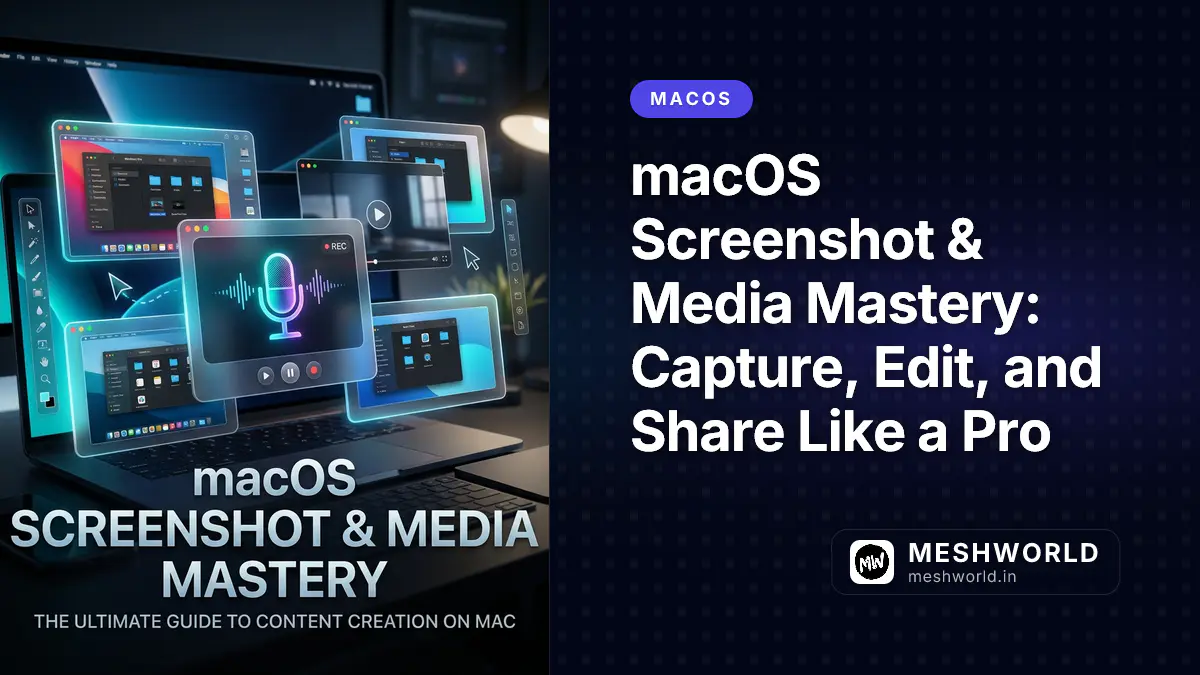
We communicate visually more than ever. Screenshots explain bugs to developers, videos demonstrate workflows, annotated images provide feedback, and screen recordings create tutorials.
macOS includes powerful built-in tools for all of this—no expensive software required. The Screenshot toolbar, QuickTime Player, Markup tools, and Preview work together to handle most visual content needs.
This guide covers professional techniques for capturing, editing, and sharing visual content on your Mac.
The Screenshot Toolbar: Beyond Basic Captures
Most users know ⌘ + Shift + 3 captures the full screen. But macOS includes a comprehensive Screenshot toolbar (activated with ⌘ + Shift + 5) that provides granular control over what you capture and how.
Opening the Screenshot Toolbar
There are a few ways to launch the utility:
- Keyboard Shortcut: Press
⌘ + Shift + 5(or⇧⌘5) to immediately open the floating toolbar at the bottom of your screen. - Spotlight Search: Press
⌘ + Space(or⌘␣), type “screenshot,” and hit Return. - Applications Folder: Open Finder, press
⌘ + 1to switch to list view, navigate to Applications, and double-click the Screenshot app.
Capture Options
| Button | What It Does |
|---|---|
| Capture Entire Screen | Screenshot of everything visible |
| Capture Selected Window | Click any window to capture it |
| Capture Selected Portion | Drag to select a region |
| Record Entire Screen | Video recording of screen activity |
| Record Selected Portion | Video of a specific area |
Recording Controls
When recording screen video:
- Click Record to start
- Click the stop button in the menu bar (or
⌘ + ⌃ + Escape) to end - Recording saves to your chosen location (default: Desktop)
Options Menu Settings
Click Options in the toolbar to configure:
| Setting | Options |
|---|---|
| Save To | Desktop, Documents, Clipboard, Mail, Messages, Preview, Custom Location |
| Timer | None, 5 Seconds, 10 Seconds |
| Microphone | None, or select input device |
| Options | Show floating thumbnail, Remember last selection, Show mouse clicks |
Interacting with the Floating Thumbnail
If you enable the Show floating thumbnail option, a small preview appears in the bottom-right corner after every capture:
- Dismiss immediately: Hover over the thumbnail and swipe it to the right to save it directly without opening.
- Edit or Annotate: Click the thumbnail to open the Quick Look editor. Select the Markup (pencil) icon to draw, add shapes, insert text, or sign the image.
- Action: Click Done to save, click the Trash icon to delete, or click the Share button to send the capture via Mail, Messages, or AirDrop.
Quick Shortcuts Without Toolbar
| Shortcut | Action |
|---|---|
⌘ + Shift + 3 | Capture full screen |
⌘ + Shift + 4 | Capture selected region |
⌘ + Shift + 4, then Space | Capture specific window (with shadow) |
⌘ + Shift + 5 | Open Screenshot toolbar |
⌘ + ⌃ + Escape | Stop screen recording |
Window Screenshots with Drop Shadow
For polished, professional-looking screenshots:
- Press
⌘ + Shift + 4 - Press Space (cursor changes to camera icon)
- Hover over the window you want to capture (it highlights)
- Click
The screenshot includes the window with a subtle drop shadow—perfect for documentation, presentations, or sharing.
Changing Default Screenshot Location
By default, screenshots save to Desktop. Change this:
- Open Screenshot toolbar (
⌘ + Shift + 5) - Click Options
- Under “Save to”, choose Other Location
- Select your preferred folder
Recommended alternatives:
- Screenshots folder (create one in Documents)
- Cloud storage folder (Dropbox, iCloud) for automatic sync
- Project-specific folders for organized work
QuickTime Player: Hidden Video Editor
QuickTime Player isn’t just for watching videos—it includes powerful trimming and splitting features for basic video editing.
Trimming Videos
- Open a video in QuickTime Player (double-click most video files)
- Press
⌘ + T(or Edit > Trim) - A yellow trim bar appears at the bottom
- Drag the handles to select the portion you want to keep
- Click Trim
- Press
⌘ + Wto close - When prompted, choose Save to overwrite or Save As for a new file
Splitting Videos (QuickTime Player Pro)
For more advanced editing, QuickTime Player can split videos into segments:
- Open your video
- Press
⌘ + Y(or View > Show Clips) - The timeline shows your video as a single clip
- Position the playhead where you want to split
- Click Split (or
⌘ + Yagain) - You can now:
- Rearrange clips by dragging
- Delete unwanted segments
- Trim individual clips
- Add clips from other videos
Exporting Options
After editing, export your video:
- File > Export As
- Choose quality:
- 4K (highest quality, largest file)
- 1080p (standard HD)
- 720p (smaller file, good for web)
- 480p (lowest quality, smallest file)
Screen Recording with Audio
Record your screen with voiceover:
- Open QuickTime Player
- File > New Screen Recording
- Click the dropdown next to the record button
- Select your Microphone
- Choose Show mouse clicks in recording (optional)
- Click Record
- Click to record full screen, or drag to select region
- Click Stop in menu bar when done
Use cases:
- Create software tutorials
- Record video calls (with permission)
- Capture gameplay
- Document workflows
Extract Text from Images: TextSniper and Markup
Need to copy text from an image, screenshot, or PDF without retyping? macOS provides tools to extract text directly from visual content.
Using Live Text (macOS Monterey+)
Live Text recognizes text in images automatically:
- Open any image with text in Preview, Photos, or Quick Look
- Hover over text—you’ll see it becomes selectable
- Click and drag to select text
- Copy (
⌘ + C) and paste wherever needed
Works with:
- Screenshots
- Photos of documents
- Images with text overlays
- PDFs
TextSniper: Third-Party Power Tool
For more control and system-wide access, TextSniper is a popular third-party tool:
Features:
- Extract text from any screen area
- Works on images, videos, locked PDFs
- OCR (Optical Character Recognition) for multiple languages
- Keyboard shortcut activation (
⌘ + Shift + 2by default)
How to use TextSniper:
- Install TextSniper from the App Store or developer website
- Activate with your configured shortcut
- Select the region containing text
- Text is automatically copied to clipboard
- Paste anywhere with
⌘ + V
Use Cases for Text Extraction
| Scenario | How It Helps |
|---|---|
| Error messages | Screenshot the error, extract text for search/support |
| Receipts | Photo of receipt → extract amounts for expense reports |
| Business cards | Photo → extract contact info |
| Whiteboards | Meeting photo → extract notes |
| Books/Documents | Scan pages → extract quotes |
| Code snippets | Screenshot → extract code for editing |
| Foreign language | Extract text for translation |
Copying from Protected PDFs
Some PDFs prevent text selection. Workarounds:
- Screenshot the page (
⌘ + Shift + 4) - Open screenshot in Preview
- Use Live Text to select and copy
- Or use TextSniper for extraction
This bypasses most PDF protection without specialized software.
Skitch: Annotation and Visual Communication
While macOS includes basic Markup tools, Skitch (by Evernote) provides professional annotation capabilities for screenshots and images.
Skitch Features
| Tool | Purpose |
|---|---|
| Arrow | Point to specific elements |
| Text | Add labels and explanations |
| Rectangle/Circle | Highlight areas |
| Pen | Freehand drawing |
| Pixelate | Blur sensitive information |
| Crop | Trim to relevant area |
| Highlighter | Emphasize text |
| Stamp | Pre-made icons and symbols |
Typical Annotation Workflow
- Capture screenshot (using
⌘ + Shift + 4) - Open in Skitch (or right-click > Open With > Skitch)
- Annotate:
- Add arrows pointing to relevant UI elements
- Circle buttons the user should click
- Blur personal/sensitive information
- Add text explanations
- Export as PNG or JPG
- Share via email, Slack, or documentation
Blur Tool for Privacy
The Pixelate tool is essential for sharing screenshots professionally:
- Blur email addresses
- Hide passwords or API keys
- Obscure personal information
- Redact confidential data
Before sharing any screenshot containing:
- Account numbers
- Email addresses
- Names (in some contexts)
- URLs with tokens/parameters
- System paths with usernames
Always use the blur tool first.
Built-In Markup Alternative
Don’t want to install Skitch? Use macOS built-in Markup:
- Open any image in Preview
- Click the Markup toolbar button (looks like a pencil tip)
- Use the toolbar to:
- Draw shapes and arrows
- Add text
- Sign documents
- Adjust colors and borders
Limitations: No blur tool (use Preview’s selection + delete for simple redaction)
Live Captions: Accessibility for All
macOS can generate real-time captions for any audio or video content playing on your Mac—including FaceTime calls, YouTube videos, podcasts, and system audio.
Enabling Live Captions
- Open System Settings > Accessibility
- Scroll to Hearing section
- Click Live Captions (Beta)
- Toggle Live Captions in English to ON
- Download the required language model (one-time, ~150MB)
Customizing Captions
Click Appearance to customize:
| Setting | Options |
|---|---|
| Font | Default, Modern, Classic, Large |
| Text Size | Small, Medium, Large, Extra Large |
| Text Color | White, Yellow, Blue (on dark background) |
| Background Color | Black, Dark, Semi-transparent |
| Window Style | Floating window, Fixed position |
FaceTime Captions
Enable captions specifically for FaceTime:
- In Live Captions settings
- Toggle FaceTime to ON
- Captions appear during video calls
- Other participants don’t see your captions
Who Benefits from Live Captions
| User | Benefit |
|---|---|
| Deaf/Hard of hearing | Access to all audio content |
| Noisy environments | Read when you can’t hear clearly |
| Quiet settings | Watch videos without sound in libraries/cafes |
| Language learners | Read along with spoken content |
| Content reviewers | Transcribe audio for notes |
Combining Images into PDF
Need to turn multiple images, screenshots, or scanned documents into a single PDF? Preview can combine any images into one document.
Step-by-Step Process
- Select the images in Finder (use
⌘ + Afor all files in a folder) - Right-click and choose Open With > Preview
- In Preview’s sidebar, verify all images are loaded
- Press
⌘ + Ato select all pages - Go to File > Export as PDF (or
⌘ + Pthen PDF > Save as PDF) - Choose location and filename
- Click Save
Result: All images combined into a single PDF, one image per page.
Ordering Pages
The PDF page order matches the sort order in Finder when you selected the files:
- Sort by name → alphabetical order in PDF
- Sort by date → chronological order in PDF
- Manually select → Shift-click to select in specific order
Pro tip: Rename files with numbered prefixes (001_intro.png, 002_setup.png, 003_config.png) for precise ordering.
Use Cases
| Scenario | Application |
|---|---|
| Documentation | Combine screenshots into a process guide |
| Expense reports | Receipt photos into single submission PDF |
| Portfolios | Design work samples into one document |
| Archives | Organize related images into collections |
| Contracts | Scanned signature pages into complete document |
Screenshot File Management
Screenshots accumulate quickly. Establish a system to keep them organized.
Naming Conventions
macOS names screenshots by default: Screenshot 2026-04-28 at 10.30.15 AM.png
Better approach: rename immediately with context:
ProjectName_Component_Description_Date.png

Examples:
- Website_Homepage_Hero_Bug_2026-04-28.png
- App_Settings_SyncError_v2_2026-04-28.png
- Tutorial_Step3_Configuration_2026-04-28.png
Folder Organization
Create a dedicated structure:
Screenshots/
├── 2026-04/
│   ├── Project-A/
│   │   ├── bug-reports/
│   │   └── designs/
│   └── Project-B/
├── 2026-03/
│   └── ...
└── Archive/
Automation with Shortcuts
Create a Shortcuts app automation:
- Open Shortcuts app
- Create new shortcut: “Organize Screenshot”
- Add actions:
- Get latest screenshot
- Ask for project name
- Save to folder:
Screenshots/Current Year-Month/[Project Name]/
- Add to Quick Actions or assign keyboard shortcut
Quick Reference: Screenshot & Media Shortcuts
| Shortcut | Action |
|---|---|
⌘ + Shift + 3 | Screenshot full screen |
⌘ + Shift + 4 | Screenshot selected region |
⌘ + Shift + 4, then Space | Screenshot specific window |
⌘ + Shift + 5 | Open Screenshot toolbar |
⌘ + ⌃ + Escape | Stop screen recording |
⌘ + T (QuickTime) | Trim video |
⌘ + Y (QuickTime) | Show clips/split video |
Space (Finder) | Quick Look preview |
⌘ + I (Finder) | Get Info |
Professional Workflow: Documentation Creation
Scenario: Creating a feature documentation with screenshots
- Enable “Remember last selection” in Screenshot toolbar
- Capture each step using
⌘ + Shift + 5with consistent region - Open all screenshots in Skitch
- Annotate:
- Arrows pointing to UI elements
- Numbered steps (1, 2, 3…)
- Blur on any personal data
- Rename:
Feature_Step1_SelectMenu.png,Feature_Step2_ClickButton.png - Combine into PDF if needed for single document
- Store in project documentation folder
Time saved vs. writing text-only instructions: 70% reduction in back-and-forth clarification questions.
Related Articles
Master all aspects of macOS:
- Keyboard Mastery on macOS — Master shortcuts and text snippets
- Master macOS Window Management — Split Screen, Stage Manager, and Hot Corners
- Finder Mastery: 15 Power User Tricks — Navigate files faster than ever
- The Connected Mac: iPhone Mirroring, Universal Control, and Continuity Camera — Use your Apple devices together seamlessly
- Hidden macOS Settings: 20 Customizations Most Users Never Discover — Personalize your Mac beyond the obvious