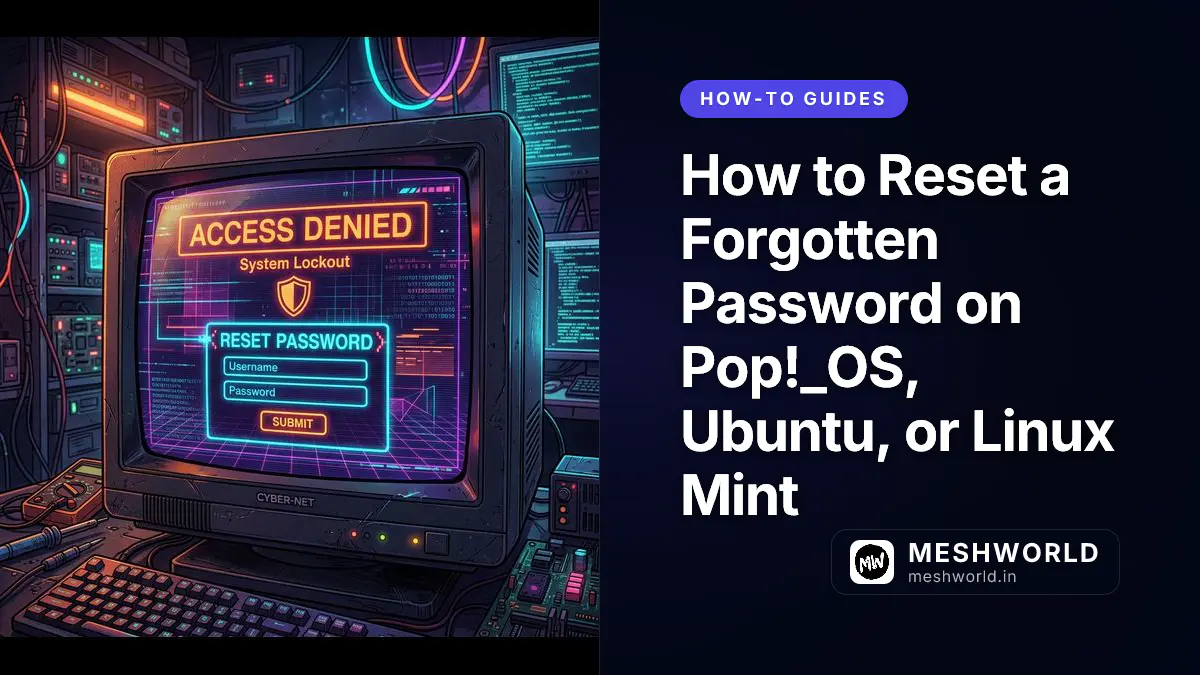
I have been there: a laptop sits in the back of your closet for two years. You pull it out, fire it up to retrieve an old database file, compile some legacy code, or test an environment—and you are greeted by the login screen. You type in every password permutation you have ever used, but the lock screen just shakes. You are locked out of your own machine.
This exact situation happened to me recently on an old Pop!_OS development machine. Before you panic and reach for a bootable USB to wipe the drive and reinstall the operating system, stop. Linux has built-in rescue paths that let you regain control of your account.
This comprehensive guide walks through resetting forgotten user passwords on Pop!_OS, Ubuntu, Linux Mint, Debian, and other systemd-based Linux systems using verified recovery methods.
Is the Linux Account and Password Recoverable?
When you lose your password, it is critical to distinguish between account recovery and password recovery:
- Is the original password recoverable? No. Linux stores password credentials as one-way cryptographically salted hashes (using SHA-512 or modern yescrypt algorithms) in the secure
/etc/shadowfile. There is no tool that can decrypt or “reveal” your original password. You can only overwrite it with a new one. - Is the account data recoverable? Yes. Since your personal files (
/home/username), software settings, and desktop setups remain untouched, resetting the password gives you full access back to your account without losing a single byte of data.
[!WARNING] The Encryption Catch: If you enabled Home Directory Encryption (via ecryptfs) or Full Disk Encryption (LUKS) during installation, resetting the password via recovery tools will not automatically decrypt your files if you forgot your encryption keys. For LUKS, you must know your disk passphrase to mount the drive and run recovery commands.
How Do You Reset Passwords via GRUB Recovery Menu? (Ubuntu, Mint, Debian)
If your system uses the GRUB bootloader (the standard for Ubuntu, Linux Mint, Debian, and other popular Linux distributions), you can boot directly into a root recovery shell. I’ve walked through this countless times when developers have panic-locked themselves out of their own machines.
- Turn off your computer completely.
- Turn it on and immediately press and hold the Shift key (on older BIOS systems) or tap Esc repeatedly (on newer UEFI systems) to display the GRUB boot menu.
- Use the arrow keys to select Advanced Options for Ubuntu (or your OS name) and press Enter.
- Select the line ending with
(recovery mode)(usually the second line) and press Enter. - Wait for the recovery menu to load. Scroll down to
root(Drop to root shell prompt) and press Enter. - Press Enter again when prompted at the bottom of the screen to load the bash prompt.
- By default, the recovery shell mounts your storage drive as “Read-Only”. Remount it as “Read-Write” so we can make changes:
BASH
mount -o remount,rw / - Reset your password using the
passwdcommand followed by your username:(If you forgot your username, typeBASHpasswd your_usernamels /hometo see a list of user folders on the machine.) - Type your new password twice. No characters or dots will show on screen for security.
- Reboot the system to log in normally:
BASH
reboot
How Do You Reset Passwords via systemd-boot Edit? (Pop!_OS)
Pop!_OS installations on modern UEFI systems utilize systemd-boot instead of GRUB. Tapping Shift or Escape will not open a recovery menu. Instead, you must edit the kernel parameters directly at boot time to inject a bash shell.
- Turn off your machine.
- Turn it on and immediately tap the Spacebar or Esc key repeatedly. This will open the systemd-boot menu.
- Select your main Pop!_OS boot option and press the e key to edit the kernel arguments line.
- A line of text containing kernel parameters (ending with options like
quiet splashorloglevel=3) will appear. Use your arrow keys to navigate to the very end of the line. - Add a space, and append the following parameter:
TEXT
init=/bin/bash - Press Enter (or Ctrl + x) to boot.
- The Linux kernel will boot and drop you directly into a root terminal prompt (
root@(/):#) without asking for login credentials. - Remount the root partition to allow write operations:
BASH
mount -o remount,rw / - Run the password reset command:
BASH
passwd your_username - Because the system skipped the standard systemd initialization process, running the normal reboot command will fail. Synchronize your write caches to the drive and force a reboot:
BASH
sync
reboot -f
How Do You Reset Passwords with LUKS Encryption via Live USB?
If your system uses Full Disk Encryption (LUKS), which is the default selection on Pop!_OS, you cannot edit kernel boot arguments or drop to recovery mode without unlocking the drive. You must boot from a Live USB (or the Pop!_OS Recovery Partition) and chroot (change root) into the encrypted filesystem.
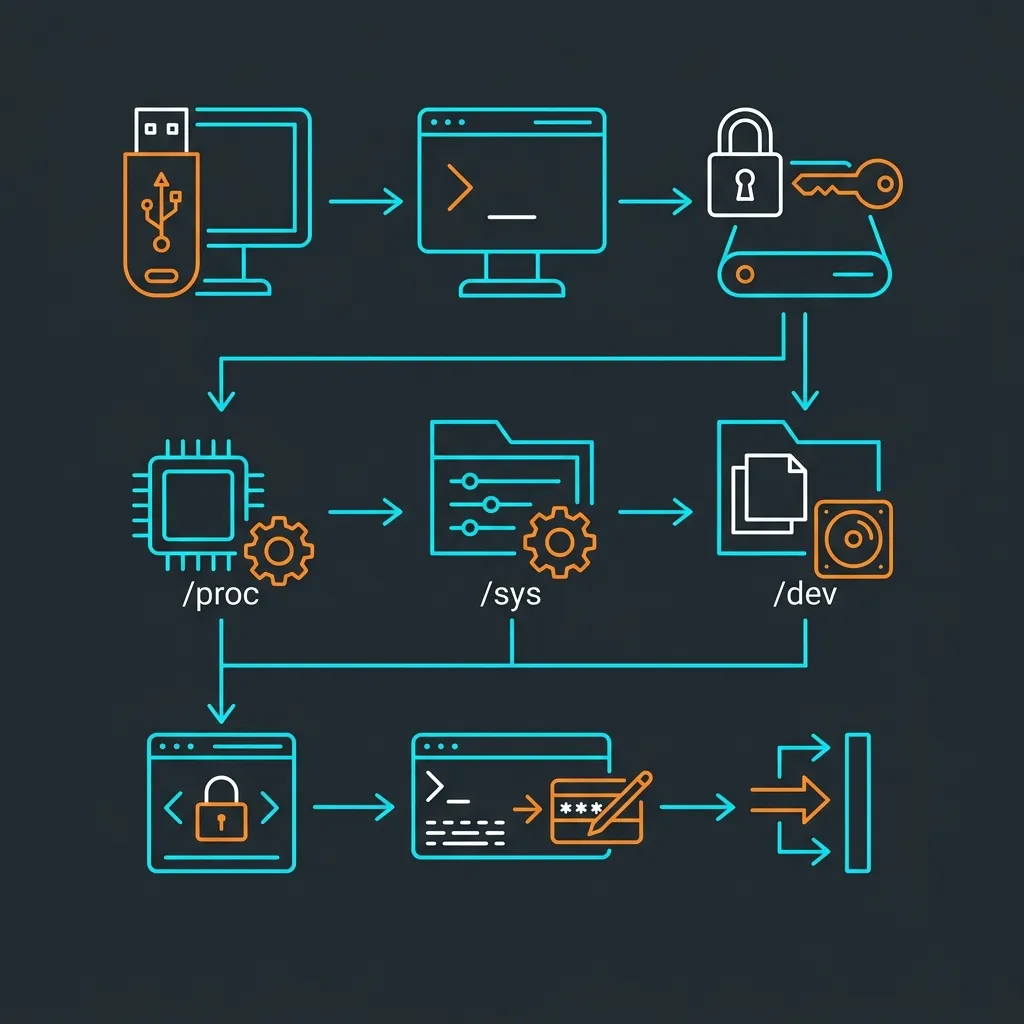 Image Prompt: A premium hand-drawn sketch note diagram. A step-by-step hand-drawn workflow showing booting from a Live USB, opening a LUKS container, mounting /proc, /sys, /dev, and changing a password, illustrated with cute computers, USB drives, and folders on a cream paper background.
- Insert your Live Linux USB and boot into it (hold F12, F11, or F2 depending on your motherboard to select the boot device). Alternatively, on Pop!_OS, hold Spacebar on boot and select Pop!_OS Recovery.
- Once the live desktop environment loads, open a terminal window.
- Identify your encrypted partition using the block device list:
Look for your main root partition (usually the largest partition, e.g.,BASH
lsblk/dev/nvme0n1p3or/dev/sda3). - Decrypt the LUKS volume using
cryptsetup:(ReplaceBASHsudo cryptsetup luksOpen /dev/nvme0n1p3 cryptdata/dev/nvme0n1p3with your partition name. You will be prompted to type your main disk encryption passphrase). - Mount the decrypted filesystem. Pop!_OS uses LVM (Logical Volume Manager) by default. Mount the root logical volume to
/mnt:(If not using LVM, mount the decrypted partition mapper directly:BASHsudo mount /dev/mapper/data-root /mntsudo mount /dev/mapper/cryptdata /mnt). - To run commands inside your installed OS, you must bind the live environment’s system directories to the mounted folder:
BASH
sudo mount --bind /dev /mnt/dev sudo mount --bind /proc /mnt/proc sudo mount --bind /sys /mnt/sys sudo mount --bind /run /mnt/run - Chroot into the mounted filesystem:
BASH
sudo chroot /mnt - You are now effectively running a root shell inside your locked operating system. Reset your password:
BASH
passwd your_username - Exit the chroot environment and reboot:
BASH
exit
sudo reboot
How Do You Resolve GNOME Keyring Lockouts After a Reset?
Once you reboot and log in using your newly configured password, you will likely see a popup warning: “The login keyring did not get unlocked when you logged into your computer.”
This happens because the GNOME Keyring (managed by Seahorse) stores your saved Wi-Fi keys, browser passwords, and SSH credentials, and is encrypted with your old login password. Since you reset your login password via a root terminal, the keyring remains locked.
Option A: If you remember the old password
- In the popup alert, type your old password when prompted.
- The keyring will open and automatically update its encryption key to match your new login password.
Option B: If you completely forgot the old password
If you have no memory of the old password, you cannot recover the keyring’s contents. You must delete the old keyring and start a fresh one:
- Open your application menu and launch Passwords and Keys (or run
seahorsein terminal). - Right-click on the Login folder on the left pane and select Delete. Confirm the deletion.
- Click the + (plus icon) or go to File > New > Password Keyring.
- Name the new keyring
loginand set its password to match your new system login password. - Alternatively, you can reset the keyring via the command line by deleting your keyring files:
Upon your next login, the desktop manager will automatically prompt you to create a new default login keyring.BASH
rm ~/.local/share/keyrings/login.keyring
Frequently Asked Questions
Is my data encrypted if I reset my password via recovery mode?
Resetting your user account password via recovery mode does not decrypt your home folder files if they were encrypted using ecryptfs (home directory encryption). If you use LUKS full disk encryption, you must enter the decryption passphrase at boot time before you can drop to a recovery shell.
Why is Chrome/Firefox asking for the login keyring password?
Your web browsers store saved passwords inside the secure GNOME Keyring. This keyring is encrypted using your old login password. When you reset your system login password using root, the keyring password is not updated, causing browser keyring prompts. You must delete or update the keyring to resolve this.
Can I reset the password for a root user?
Yes. If you drop into a root shell (either through TTY recovery, GRUB, or chroot), you can reset the root account password by running:
sudo passwd rootCommunity-Verified Solutions
For further reading and troubleshooting edge cases (such as read-only filesystem locks or broken LVM configurations), reference these verified community discussions:
- Stack Overflow: How to reset a forgotten root/user password in Ubuntu? – Covers recovery mode alternatives and handling file permissions.
- System76 Support: Pop!_OS Official Password Reset Documentation – Complete reference guide for LUKS partition structures.
If you encounter boot freezes or your graphical desktop refuses to load after resetting the display manager context, read my guide on How to Fix a Frozen Linux System Without Losing Data for recovery shortcuts.