
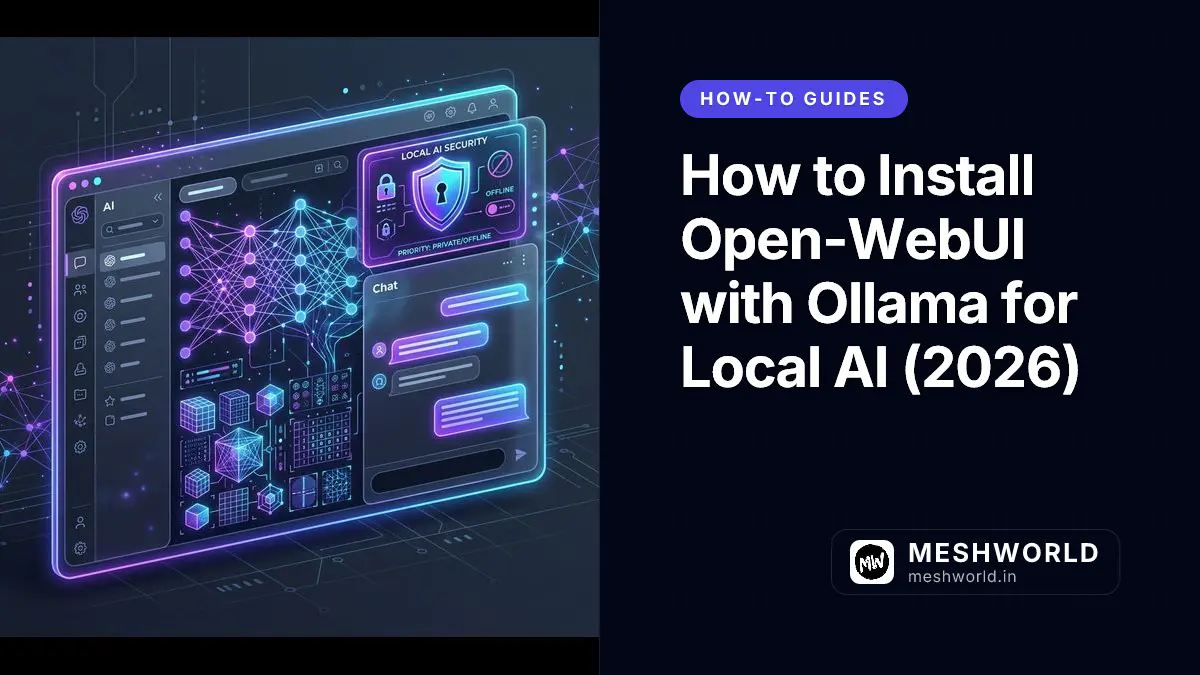
Open-WebUI (formerly Ollama WebUI) is an extensible, self-hosted web interface designed for managing and interacting with local large language models. Featuring a user interface similar to ChatGPT, Open-WebUI provides multi-user management, Retrieval-Augmented Generation (RAG) document uploading, web search integration, custom system prompt templates, voice chat, and code execution.
Connecting Open-WebUI to an Ollama backend engine on Ubuntu 24.04 LTS (Noble Numbat) or 22.04 LTS creates a 100% private, offline AI workspace that executes open-weight models (Llama 3.2, Qwen 2.5, Mistral, Gemma 2) directly on your local CPU or GPU hardware without third-party API costs or data tracking.
Last updated: July 24, 2026
What are the system requirements for Open-WebUI and Ollama?
Running Open-WebUI connected to an Ollama backend engine requires a 64-bit Linux or macOS system with at least 8 GB RAM for 3B models, 16 GB+ RAM for 7B–8B models, 10 GB SSD storage, and Docker Engine 24.0+ installed.
Before deploying Open-WebUI, verify system hardware and software prerequisites:
- Operating System: Ubuntu 24.04 LTS, 22.04 LTS, Debian 12, or macOS
- Memory: Minimum 8 GB RAM for running 3B models; 16 GB+ RAM recommended for 7B–8B models
- Disk Storage: 10 GB SSD space for model weights and RAG vector databases
- Prerequisites: Docker Engine 24.0+ and Ollama 0.1.30+ installed
How do you install Ollama on the host system?
To install Ollama on Ubuntu or Linux, run curl -fsSL https://ollama.com/install.sh | sh in terminal and verify the service daemon is active on port 11434.
Open-WebUI requires an active Ollama instance to serve LLM inferences.
Step 1: Install Ollama via Shell Script
On Ubuntu or Linux systems, run the official installation command:
curl -fsSL https://ollama.com/install.sh | shStep 2: Verify Ollama Service and Pull a Model
Confirm Ollama is running and pull a baseline model (such as Llama 3.2 3B or Qwen 2.5 7B):
ollama run llama3.2:3bOnce the interactive prompt appears, type /bypass or press Ctrl+D to exit the CLI chat. Ollama will continue running in the background on port 11434.
How do you install Open-WebUI using Docker?
To install Open-WebUI using Docker, run the official container image from GitHub Container Registry (ghcr.io/open-webui/open-webui:main), mapping host port 3000 to container port 8080 and connecting to the Ollama backend API.
Deploying Open-WebUI via Docker ensures isolated dependencies and simple updates.
Step 1: Run the Open-WebUI Docker Container
Execute the following Docker command to launch Open-WebUI connected to your host Ollama backend:
docker run -d \
  -p 3000:8080 \
  --add-host=host.docker.internal:host-gateway \
  -v open-webui:/app/backend/data \
  --name open-webui \
  --restart always \
  ghcr.io/open-webui/open-webui:main
Command Flag Breakdown:
-p 3000:8080: Maps host port3000to container port8080.--add-host=host.docker.internal:host-gateway: Grants the container access to your host machine’slocalhostinterface.-v open-webui:/app/backend/data: Persists chat history, user settings, and document embeddings inside a Docker volume.--restart always: Ensures Open-WebUI starts automatically on server reboot.
Step 2: Verify Container Execution
Check that the container is active:
docker psHow do you configure Open-WebUI and create an Admin account?
To configure Open-WebUI, navigate to http://localhost:3000 in your web browser and sign up for an initial account, which automatically receives Super Admin permissions.
Once the container is active, configure your local web workspace:
Step 1: Access Open-WebUI in Browser
Open your browser and navigate to:
http://localhost:3000(Or http://<your-server-ip>:3000 when accessing remotely)
Step 2: Create Super Admin Account
On first launch, click Sign Up to create your initial user account. The first registered account automatically receives Super Admin permissions.
Step 3: Select Models and Chat
- Click the Select a model dropdown at the top of the interface.
- Select
llama3.2:3bor any model previously pulled via Ollama. - Start typing prompts in the chat interface.
Frequently Asked Questions (PAA)
Is Open-WebUI completely free and open source?
Yes. Open-WebUI is 100% open-source software licensed under the MIT License. It does not require any paid subscription or external cloud API key.
How do I pull new Ollama models inside Open-WebUI?
Navigate to Admin Settings > Models inside the Open-WebUI interface. Type any model tag from the Ollama Library (e.g. mistral, gemma2, codellama) into the Pull a model field and click the download button.
How do I update Open-WebUI to the latest version?
To update your Docker container to the newest release, pull the latest image and restart:
docker stop open-webui
docker rm open-webui
docker pull ghcr.io/open-webui/open-webui:main

# Re-run the container command
docker run -d -p 3000:8080 --add-host=host.docker.internal:host-gateway -v open-webui:/app/backend/data --name open-webui --restart always ghcr.io/open-webui/open-webui:main
Can multiple users access my self-hosted Open-WebUI instance?
Yes. Open-WebUI includes full multi-user authentication. Super Admins can invite team members, set model permission controls, or restrict access via role assignments in Admin Panel > Users.