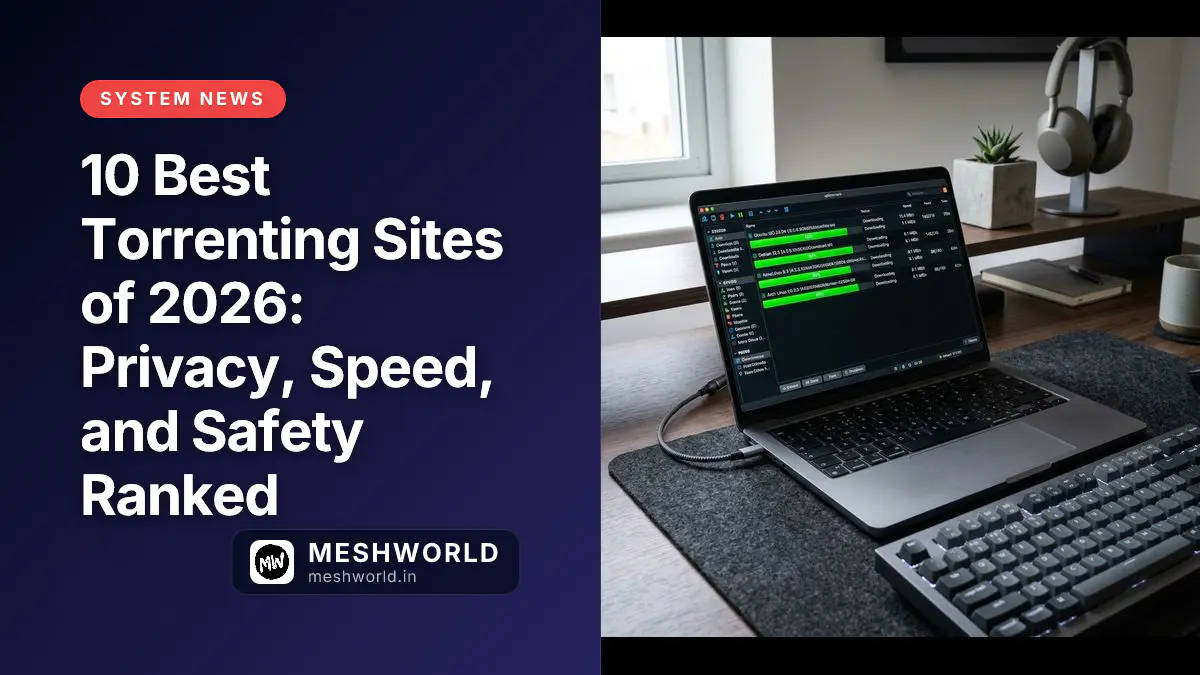


Relying solely on a VPN kill switch is one of the most common privacy mistakes in P2P file sharing. During a connection drop, there is often a latency window where your VPN client disconnects, but your BitTorrent client continues to seed, exposing your real IP address to the swarm. This guide teaches you how to bind qBittorrent directly to your VPN’s virtual network interface to ensure all P2P traffic stops instantly if your VPN goes down.
Prerequisites
Before binding, ensure you have:
- Installed qBittorrent
- An active VPN subscription that supports P2P traffic
Why do VPN kill switches fail?
A VPN kill switch works by monitoring your network and blocking internet traffic if the VPN tunnel goes offline. However, this is a reactive process.
If your VPN software crashes or the connection drops abruptly, there is a split second (or several seconds) where your operating system reverts to your default physical network adapter.
During this brief window, qBittorrent will migrate its connections to your real ISP adapter, immediately broadcasting your residential IP address to the peer swarm.
By contrast, network interface binding is proactive. By telling qBittorrent to only communicate via the VPN’s network interface card (NIC), the client is physically unable to send or receive packets through any other adapter. If the VPN interface disappears, P2P traffic freezes instantly.
How do I identify my VPN network interface?
Before you can bind the client, you need to know the name of the virtual network adapter created by your VPN software.
On Windows:
- Open the Command Prompt (
cmd). - Run:
ipconfig /all - Look for network adapters labeled with your VPN provider’s name (e.g., “TAP-ProtonVPN”, “NordLynx”, “ExpressVPN Tap Adapter”, or “WireGuard Tunnel”).
On macOS / Linux:
- Open the Terminal.
- Run:
ifconfig(orip link showon modern Linux). - Look for adapters named
tun0,tun1,wg0(WireGuard),nordlynx, orutun0/utun1(common on macOS).
How do I bind qBittorrent to the interface?
Once you have identified the interface name, follow these steps to configure qBittorrent:
- Open qBittorrent and navigate to Tools > Options > Advanced.
- Locate the Network interface dropdown setting.
- Select your VPN’s network adapter name from the list (do not leave it on Any interface).
- (Optional) Scroll down to Optional IP address to bind to and select All IPv4 addresses (or the specific IP assigned by your VPN, though names are more stable across reconnections).
- Click Apply and restart qBittorrent to ensure the binding initializes.
# Example selecting a WireGuard interface in Linux:
# Settings -> Advanced -> Network Interface -> wg0 (or tun0)
How do I verify the binding works?
To verify your configuration safely:
- Locate a legal torrent (such as an Ubuntu Linux ISO).
- Start the download and wait for it to reach active speeds.
- Open your VPN client and click Disconnect or force-kill the VPN app.
- Check qBittorrent immediately: the download and upload speeds should drop to exactly 0 B/s within 1 second, and the status should change to Stalled or Downloading (metadata).
- Reconnect your VPN: downloads should resume automatically.
Summary
- Proactive Protection: Interface binding prevents leaks during VPN software crashes.
- Identify the adapter: Use
ipconfig(Windows) orifconfig(macOS/Linux) to find your VPN interface. - Select Advanced Settings: Choose your specific VPN adapter under qBittorrent’s Network Interface options.
- Verify: Disconnect your VPN mid-download to confirm all traffic drops to zero immediately.
Frequently Asked Questions
Can I bind qBittorrent if my VPN uses different servers?
Yes. Interface binding binds to the local virtual network card created on your system, not to a remote server IP. The network card name remains identical even when you switch VPN countries or server locations.
What happens if my VPN adapter name changes?
If your VPN provider changes its software protocols (e.g., shifting from OpenVPN to WireGuard), the virtual adapter name may change. If this happens, qBittorrent will fail to connect. You must go back into options and select the new adapter name.
Is this setting available in other torrent clients?
Yes, but it is easiest to configure in qBittorrent. Deluge and Transmission support interface binding via command-line flags or configuration files, while uTorrent’s support is notoriously unstable.
What to Read Next
- qBittorrent Safety Guide: How to Configure qBittorrent Safely (2026) — Complete client-side security hardening.
- 10 Best Torrenting Sites of 2026: Privacy, Speed, and Safety Ranked — Safe, verified trackers.
- How to Verify File Integrity: Checksums and GPG Signatures — Keep your computer safe from malicious software installers.