
A Raspberry Pi 5 with 8GB of RAM can run a 3-billion-parameter language model at a few tokens per second, entirely offline, for the price of a nice dinner. That sentence would have sounded like a joke three years ago. It isn’t anymore. This guide covers which small language models (SLMs) actually run on a Pi or a phone today, how quantization trades accuracy for speed, and the exact commands to get a model answering questions on hardware that fits in your palm.
I run three of these setups in my own apartment right now: a Pi 5 doing intent classification for a home automation script, a Pi 4 (don’t laugh, it still works for tiny models) running a note-summarizer, and a two-year-old Android phone running a fully offline chat assistant for flights where I don’t trust airport Wi-Fi. None of them talk to the internet after the model download finishes.
Prerequisites
Before you start, you need:
- A Raspberry Pi 5 with at least 8GB RAM (4GB works for the smallest models, but you’ll be tight on headroom), running 64-bit Raspberry Pi OS
- A microSD card or, better, an NVMe/USB SSD boot drive (model files are multiple gigabytes, and slow storage makes load times painful)
- SSH or direct terminal access to the Pi
- For the phone side: an Android device with at least 6GB RAM, or an iPhone with A16/A17-class silicon or newer, plus Wi-Fi for the one-time model download
- Basic comfort with a Linux terminal. Nothing exotic, but you will type commands
If you haven’t set up Ollama on a normal desktop yet, our Gemma 4 with Ollama guide covers the same tool on more forgiving hardware, which is a gentler place to start.
Why run a language model on a Raspberry Pi instead of the cloud?
Cloud AI APIs are fast, capable, and cheap per request. So why bother with a $80 computer that struggles to keep up? Three reasons keep coming up when I talk to people building this way: privacy, latency behavior, and cost at scale.
Privacy is the one that actually matters for most hobbyists and small teams. If your device is reading private messages, medical notes, or anything from a home camera feed, sending that text to a third-party API means trusting their retention policy, their breach history, and their business model. Running inference locally means the data never leaves the device. That’s not a marketing claim, it’s a property of the architecture: there’s no network call to intercept, log, or subpoena.
Latency behaves differently, not necessarily better. A cloud API round-trip depends on your internet connection, the provider’s current load, and network jitter. Local inference has none of that variability, but it’s also usually slower in raw throughput on Pi-class hardware compared to a cloud GPU. What you gain is predictability: the same prompt takes roughly the same time whether your Wi-Fi is good or terrible, because there’s no Wi-Fi involved in the inference step at all.
Cost stops being a per-request line item. Once you’ve paid for the hardware, running a model a million times costs the same as running it once (plus electricity, which on a Pi 5 is genuinely negligible: it draws under 15W under load). For a hobby project pinging a model every few seconds, that math adds up fast against API billing.
What is a small language model, and how is it different from the big ones?
A small language model is, unsurprisingly, defined mostly by parameter count. There’s no official cutoff, but in practice the models people call “SLMs” in 2026 sit somewhere between 270 million and roughly 8 billion parameters. Compare that to frontier cloud models, which run from tens of billions into the trillions.
Fewer parameters means less capability per query, but the relationship isn’t linear. A 3B model in 2026 handles tasks that would have needed a 30B model three years ago, because training techniques (better data curation, distillation from larger teacher models, and architecture tweaks) have improved faster than raw parameter counts have grown. SLMs aren’t “the cloud model but worse.” They’re a different design target: models trained specifically to be useful within a tight memory and compute budget, not scaled-down versions of something bigger.
That distinction matters when you pick one. A 3B model that’s been trained and tuned for instruction-following and summarization will usually beat a naively-shrunk 7B model at the tasks it was designed for, even though it’s smaller on paper.
Which SLM families are worth running on edge hardware right now?
Here’s where things stand across the major families as of this writing, based on official model cards and Ollama’s library listing:
| Family | Edge-relevant sizes | License | Notes |
|---|---|---|---|
| Google Gemma | 270M, 1B, 4B (Gemma 3); E2B, E4B (Gemma 3n and Gemma 4, mobile-tuned) | Gemma license (custom, permissive for most use) | E2B/E4B variants are explicitly built for phones and laptops with multimodal (text, image, audio) input |
| Microsoft Phi | Phi-4-mini (3.8B), Phi-4-mini-reasoning (3.8B) | MIT | Function-calling and reasoning-tuned variants exist at the same size |
| Alibaba Qwen | Qwen 3: 0.6B, 1.7B, 4B, 8B | Apache 2.0 | Wide size ladder, useful when you want to test the same family at multiple sizes on the same hardware |
| Meta Llama | Llama 3.2: 1B, 3B | Llama Community License (custom, has usage restrictions above certain scale) | Smaller catalog of tiny variants than Gemma or Qwen |
| TinyLlama | 1.1B | Apache 2.0 | Older, smaller, useful mainly as a floor for “does this even boot” testing |
I’d treat this table as a starting point, not gospel. Check the model card on Hugging Face or ollama.com/library before you commit, because these families ship new sizes and licenses more often than most software gets a major version bump.
How does quantization make these models fit on a Pi or phone?
Here’s the part that actually makes edge AI possible: quantization. A language model’s weights are, in their original trained form, usually stored as 16-bit floating point numbers (FP16 or BF16). A 3-billion-parameter model at FP16 needs roughly 6GB of RAM just to hold the weights, before you account for the memory needed during inference itself. That doesn’t leave much room on an 8GB Pi.
Quantization reduces the precision of those weights, storing each one in fewer bits. The GGUF format used by llama.cpp (and, under the hood, by Ollama) supports several quantization levels, and the naming convention tells you roughly what to expect:
- Q8_0: 8-bit weights. Close to the original quality, with a measured perplexity increase of around 0.01 compared to full precision in most reported testing. Costs you almost double the size of Q4 for that fidelity.
- Q4_K_M: Nominally 4-bit, but the “K” quantization scheme distributes bits unevenly across layers, so attention and output layers get more precision than less-critical layers get. Effective size works out to roughly 4.5 bits per weight. This is the practical default for most edge deployments, trading a small, usually hard-to-notice quality dip for close to half the memory footprint of Q8.
- Q4_0: An older, simpler 4-bit scheme without the mixed-precision trick. Mostly superseded by Q4_K_M for new deployments, but still around for compatibility.
- Q5_K_M / Q6_K: Middle ground between Q4 and Q8, useful if Q4 feels too lossy for your specific task but you don’t have room for Q8.
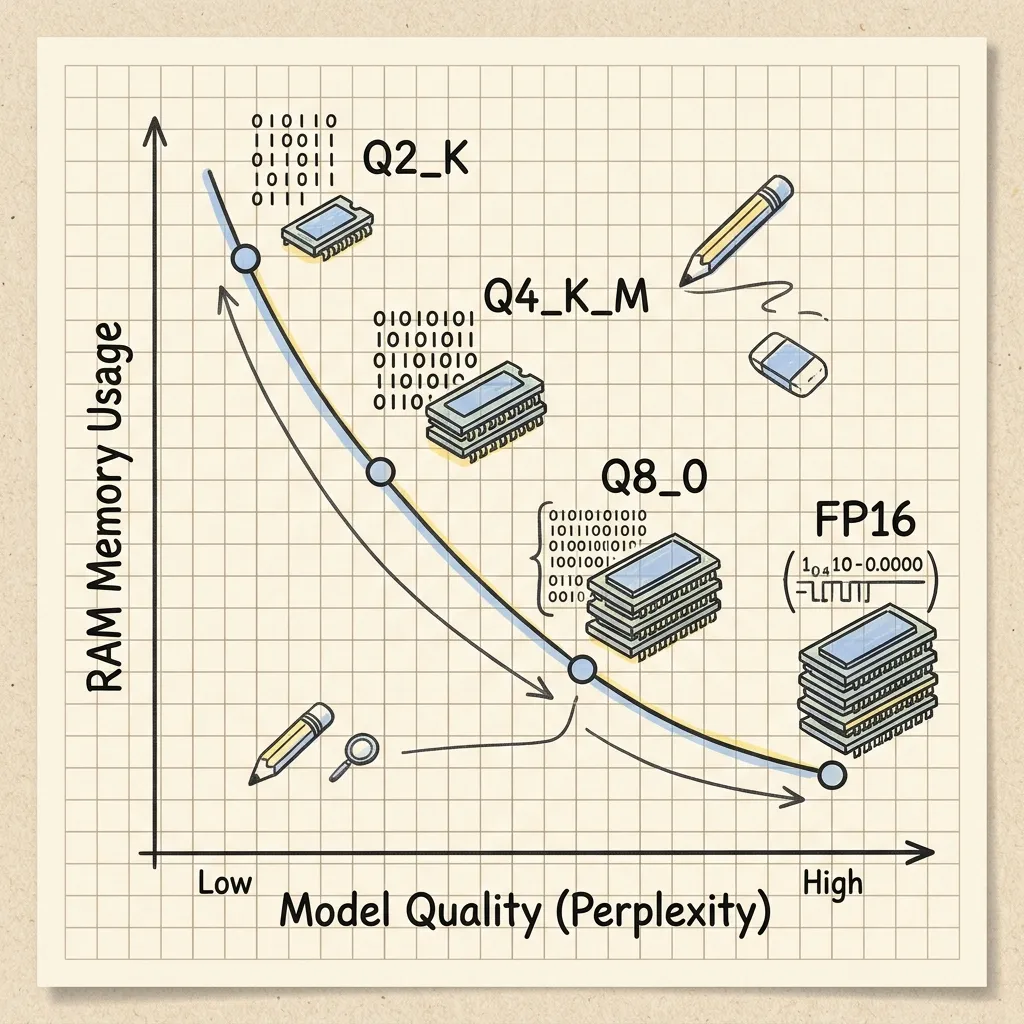 Image Prompt: A premium hand-drawn isometric vector doodle illustration on a warm cream paper background. A horizontal bar chart made of stacked cube blocks showing four quantization levels labeled FP16, Q8, Q4_K_M, and Q4_0 shrinking in size from left to right, each block color-coded with soft pastel highlights (blue for FP16, green for Q8, yellow for Q4_K_M, orange for Q4_0), with a small RAM stick doodle icon and a speedometer doodle icon next to the shrinking blocks, hand-drawn arrows pointing down labeled “size” and up labeled “speed”, graphite outline style, playful annotation doodles in the margins. No text, no watermark. Square 1
Why does this matter so much on a Pi specifically? Because a Pi 5 doesn’t have a discrete GPU with its own VRAM. The CPU, the model weights, and everything else share the same LPDDR4X memory pool. Every gigabyte you save through quantization is a gigabyte the OS, your other processes, and the inference context window get to use instead.
How do I set up Ollama on a Raspberry Pi?
Ollama is the simplest on-ramp for this, mostly because the install process is identical to a desktop Linux machine. You’re not compiling anything by hand unless you want to.
Step 1: Confirm you’re running 64-bit Raspberry Pi OS
Quantized GGUF models and their runtimes assume a 64-bit ARM target. If you image a fresh SD card with Raspberry Pi Imager, pick the 64-bit “Raspberry Pi OS (64-bit)” option, not the legacy 32-bit build. You can check what you’re already running with:
# Confirm the OS architecture before installing anything
uname -m
# aarch64 = 64-bit, good to go
# armv7l = 32-bit, you'll need to reflash
Step 2: Install Ollama
Ollama ships a single install script that works the same way on a Pi as it does on any other Linux box:
# Official Ollama install script, detects ARM64 automatically
curl -fsSL https://ollama.com/install.sh | sh
This installs the Ollama binary and sets it up as a systemd service, so it starts automatically on boot. Confirm it’s running with:
# Check that the Ollama service is active
systemctl status ollama
Step 3: Pull a small model
Start with the smallest option in a family you’re interested in, not the biggest one your RAM budget technically allows. You want headroom for the OS and whatever else the Pi is doing.
# Pull Gemma 3's 1B parameter model, a reasonable first test on 4-8GB Pi boards
ollama pull gemma3:1b
For an 8GB Pi 5, you have room to go bigger:
# Pull a 4B model, a good fit for 8GB RAM at default Q4 quantization
ollama pull gemma3:4b
Step 4: Run it
# Start an interactive chat session with the model
ollama run gemma3:1b
Type a prompt and watch the tokens stream back. Type /bye to exit the session. If you want to script against it instead of chatting interactively, Ollama also exposes a local HTTP API on port 11434 by default, the same one used on desktop installs, which the next section covers.
How do I call a local model from my own application code?
Interactive chat is useful for testing, but the reason to put a model on a Pi is usually so that some other program can talk to it. Ollama serves an HTTP API at http://localhost:11434/api by default, and it’s the same interface whether you’re on a Pi, a laptop, or a server.
The two endpoints you’ll actually use are /api/generate for one-shot completions and /api/chat for multi-turn conversations. Both take a model field, an optional stream boolean (streaming is on by default), an options object for runtime generation settings, and a keep_alive duration controlling how long the model stays resident in memory afterwards.
# One-shot completion against the locally running Ollama instance
curl http://localhost:11434/api/generate -d '{
  "model": "gemma3:1b",
  "prompt": "Summarise this in one sentence: ...",
  "stream": false
}'
Setting "stream": false is the first change most people want on a Pi, because a script that only needs the finished text is easier to write against one JSON object than against a sequence of partial ones.
# Same idea from Python, standard library only, no SDK to install
import json, urllib.request

payload = {
    "model": "gemma3:1b",
    "messages": [{"role": "user", "content": "why is the sky blue?"}],
    "stream": False,
}
req = urllib.request.Request(
    "http://localhost:11434/api/chat",
    data=json.dumps(payload).encode(),
    headers={"Content-Type": "application/json"},
)
with urllib.request.urlopen(req) as resp:
    body = json.load(resp)

print(body["message"]["content"])
# eval_duration is in nanoseconds, so this is real tokens/sec on YOUR board
print(body["eval_count"] / (body["eval_duration"] / 1e9))
The response carries its own instrumentation, which is handy given how much this guide has insisted you measure your own hardware instead of trusting someone else’s numbers. eval_count is the number of tokens generated and eval_duration is how long that took in nanoseconds, so dividing one by the other gives you a tokens-per-second figure for your exact board, model, and quantization level. load_duration is reported separately, which is how you tell “the model was cold and had to come off disk” apart from “generation itself is slow.”
How do I run a small language model on a phone?
Phones are a different environment. There’s no systemd, no apt package manager, and app store policies gate what you can install. Two paths dominate right now.
Google AI Edge Gallery (Android and iOS)
Google’s own app for on-device model inference. It’s built specifically to run Gemma’s mobile-tuned variants (E2B, E4B) fully offline after a one-time download over Wi-Fi. We covered the full setup in detail in our phone-focused Gemma guide; the short version is: install the app, pick a model, wait for the download, and you have a chat interface that never touches the network again.
The advantage here is that Google has done the work of optimizing for phone NPUs and GPUs through their MediaPipe/LiteRT stack, so you’re not purely CPU-bound the way you are on a bare Pi.
llama.cpp-based apps (broader model support, less polish)
If you want a model outside the Gemma family on your phone, you’re generally looking at a llama.cpp-based Android or iOS app that loads GGUF files directly, the same format you used on the Pi. These apps trade Google’s hardware-specific optimization for flexibility: you can load a Phi-4-mini or Qwen 3 GGUF the same way you’d load it on a Pi, provided your phone has the RAM.
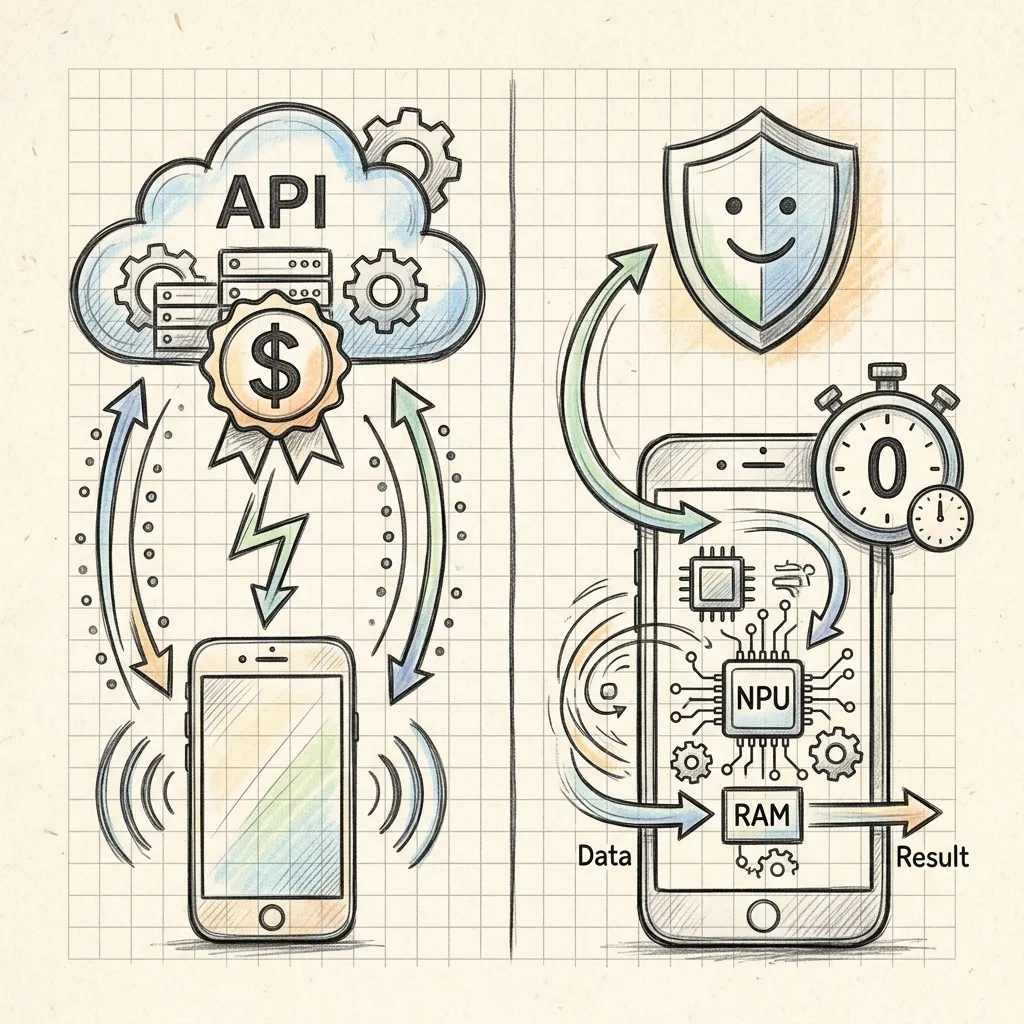 Image Prompt: A premium hand-drawn isometric vector doodle illustration on a warm cream paper background split into two labeled lanes. Top lane: a phone doodle icon sending a dashed arrow up to a cloud doodle icon, then a dashed arrow back down, with a small clock doodle showing network latency. Bottom lane: the same phone doodle icon with a short looping arrow into a small chip/processor doodle inside the phone itself, no cloud, a small lock doodle icon next to it, graphite outline style with soft pastel blue and green highlights, hand-drawn dashed connection lines, small annotation scribbles like “round trip” and “on-device”. No text, no watermark. Square 1
How do I choose the right model for my device class?
I get asked this more than anything else, so here’s the framework I actually use when someone asks “will X model run on Y device.”
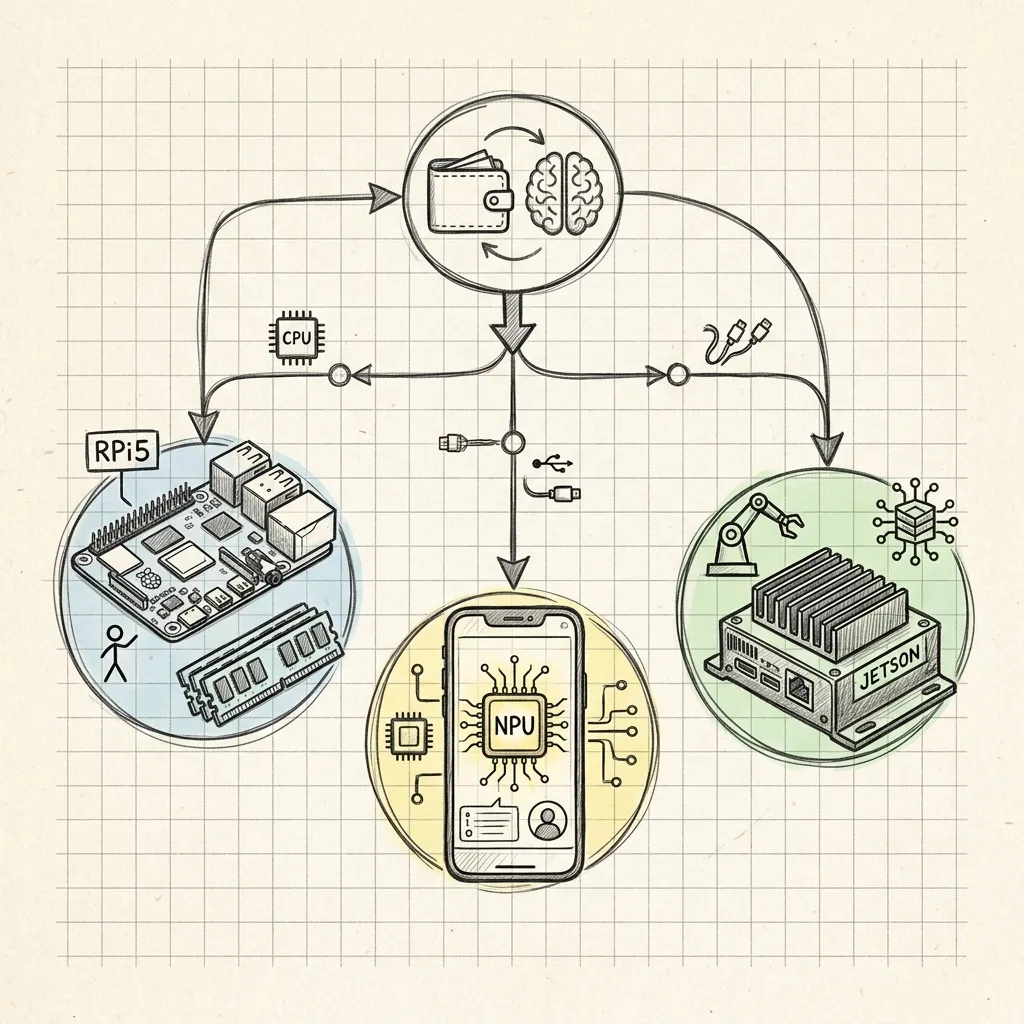 Image Prompt: A premium hand-drawn sketch note style illustration on a cozy cream paper background. Four small hand-drawn devices in a row: a small single-board computer labeled with a “4GB” sticky note doodle, a slightly bigger board labeled “8GB”, a phone doodle labeled “mid-range”, and a larger sleeker phone doodle labeled “flagship”, each connected by a hand-drawn arrow to a small stacked-block icon sized proportionally to represent model size (smallest block under the first device, largest block under the last), warm graphite lines, playful pencil-sketch shading, soft pastel yellow and blue highlight accents, faint notebook grid lines in the background. No text, no watermark. Square 1
Raspberry Pi 4 (4GB or less RAM)
Stick to models at 1B parameters or under, quantized at Q4_K_M. Anything bigger will either fail to load or push you into swap. This tier is realistic for simple classification, short summarization, or single-turn Q&A, not extended conversation with a long context window.
Raspberry Pi 5 (8GB RAM)
The sweet spot for this guide. 3-4B models at Q4_K_M run with reasonable headroom for the OS and a moderate context window. This is where I’d point someone building an actual small project, like a local voice assistant backend or a document summarizer for a home server.
Raspberry Pi 5 (16GB RAM)
You can push to 7-8B models at Q4_K_M, or run a 3-4B model at Q8_0 for better output quality. Diminishing returns start to show here: you’re paying for a bigger, slower model without necessarily crossing into a different tier of usefulness for most tasks an SLM is good at.
Mid-range Android phone (6-8GB RAM, no dedicated NPU acceleration in your app)
Treat it like a Pi 4. 1-2B models, Q4 quantization, modest expectations. Google AI Edge Gallery’s E2B model is built exactly for this tier.
Flagship phone (12GB+ RAM, recent chipset with NPU support in the app)
3-4B models become realistic, especially through Google AI Edge Gallery where the E4B variant gets hardware acceleration the raw CPU path doesn’t. This is currently the top of what “phone-class edge AI” means in practice.
What should I check first when inference stalls or slows down?
When a setup that used to work starts hanging, crashing, or crawling, the cause on Pi-class hardware is almost always one of three things: context length, temperature, or a model that keeps getting unloaded between calls. Check them in that order before you go looking for a bug.
Context length quietly competes with the weights. Ollama uses a context window of 4096 tokens by default, changeable with the OLLAMA_CONTEXT_LENGTH environment variable on the server or the num_ctx option on an individual request. Raising num_ctx toward a model’s advertised maximum is the fastest way I know to turn a model that loaded comfortably into one that pushes the board into swap, because the cache for that context comes out of the same RAM pool as the weights. If something worked yesterday and doesn’t today, ask what changed about your prompt length before you blame the model.
Sustained generation is a thermal workload, not a bursty one. Raspberry Pi boards progressively throttle the Arm cores once the SoC passes 80C, and at 85C both the Arm cores and the GPU get throttled back. A typical desktop workload spikes and recovers; token generation holds the cores busy for as long as the response takes, which is exactly the profile that reaches those limits. vcgencmd measure_temp reports the current SoC temperature, and vcgencmd get_throttled returns a bit pattern where 0x4 means throttling is happening right now and 0x40000 means it has happened since boot. Bit 0x1 is worth reading too: it flags undervoltage, which on a Pi 5 usually points at a marginal USB-C supply rather than anything wrong with the model. Raspberry Pi recommends a 5V 5A supply for the Pi 5, though a 3A one is fine if you aren’t hanging power-hungry peripherals off the USB ports.
A model that isn’t resident pays to load every time. Ollama keeps a model in memory for five minutes after the last request by default. A script firing once every ten minutes therefore pays the full load cost on every single call, which on SD-card storage can dwarf the generation time itself. Pass "keep_alive": -1 to hold the model in memory indefinitely, or "keep_alive": 0 to unload it as soon as the response finishes and hand the RAM back to whatever else the Pi is doing.
What can’t small models on edge hardware actually do well?
I’d be doing you a disservice if I only listed the wins. There are real limits, and pretending otherwise sets people up to build something that quietly disappoints them in production.
Context length gets expensive fast. Even models advertising 32K or 128K token context windows need proportionally more RAM to actually use that window during inference on a Pi. In practice, I keep working context on Pi-class hardware well under the model’s advertised maximum, because the RAM cost of a long context competes directly with the model weights for the same limited pool.
Multi-step reasoning degrades before raw recall does. A 3B model can usually tell you a fact it was trained on. Ask it to chain four logical steps together and you’ll see it lose the thread more often than a larger cloud model would. If your use case genuinely needs multi-step reasoning, an SLM is often the wrong tool regardless of how well you quantize it.
Tokens per second is genuinely slower than what you’re used to from a chat app backed by a cloud GPU. I said this above in the callout and I’ll say it again here because it’s the complaint I hear most from people trying this for the first time: the experience is closer to watching a message slowly appear than the near-instant stream you get from a well-funded cloud API. For a background task that doesn’t need a human staring at the screen waiting, that’s a non-issue. For an interactive chatbot, it’s the first thing users notice.
Not every model family plays nicely with every quantization level. I’ve had a couple of models produce genuinely broken output (repeated tokens, garbled Unicode) at aggressive quantization that worked fine at a higher bit depth, and it wasn’t predictable from the model card alone. Test the actual quant you plan to ship with real prompts from your use case before you commit to it.
Summary
- Small language models under roughly 4B parameters, quantized to GGUF’s Q4_K_M format, are the practical entry point for both Raspberry Pi and phone-based edge AI as of 2026.
- Ollama makes Pi setup close to identical to desktop Linux setup; Google AI Edge Gallery and llama.cpp-based apps are the current phone-side options.
- Match model size and quantization to your device’s actual available RAM, not its advertised total, and start smaller than you think you need to.
- Privacy and cost predictability, not raw speed, are the honest reasons to choose on-device inference over a cloud API.
- Multi-step reasoning and long context are where small models on constrained hardware show their limits fastest; test with your real prompts before building something that depends on either.
Frequently Asked Questions
Can a Raspberry Pi actually run a useful language model, or is it just a demo?
It depends on the task. For classification, short summarization, and single-turn question answering, a Pi 5 with an 8GB model like Gemma 3’s 4B variant at Q4_K_M is genuinely useful, not just a proof of concept. For extended multi-turn conversation or complex reasoning, the limits show up quickly and you’ll want to manage your expectations accordingly.
What’s the difference between GGUF and the original model files from Hugging Face?
The original files from a model’s Hugging Face repository are usually in safetensors format at full precision (FP16/BF16), meant for GPU training and inference frameworks like PyTorch. GGUF is a format specifically designed for llama.cpp-style CPU and edge inference, and it’s typically where quantization happens, converting those full-precision weights into the 4-bit, 5-bit, or 8-bit formats discussed above.
Do I need internet access after setting up a model on my Pi or phone?
No, once the model file is downloaded, inference runs entirely on the device with no network calls required. This is the core privacy argument for edge AI. You’ll only need connectivity again if you want to pull a different model or update Ollama itself.
Why does my model run fine on a Pi 5 but crash or hang on a Pi 4?
Almost always RAM. The Pi 4’s top configuration (8GB on some boards, though many are 2GB or 4GB) leaves much less headroom once you subtract what the OS and any other running services need. If a model that runs on a Pi 5 hangs on a Pi 4, check free -h for swap usage before assuming it’s a software bug; a smaller model or more aggressive quantization is usually the actual fix.
Is it better to build my own llama.cpp binary instead of using Ollama?
For most people, no. Ollama wraps llama.cpp with model management, an API server, and a simpler CLI, and the performance difference on Pi-class hardware is rarely worth the extra setup complexity. Building llama.cpp directly makes more sense if you need a specific compile-time optimization flag for your exact CPU, or you’re deploying to a device Ollama doesn’t officially support yet.
What to Read Next
- How to Install Gemma 4 Locally with Ollama: the same Ollama workflow on desktop hardware, a good place to build familiarity before moving to a Pi
- How to Run Google’s Gemma 4 Locally on Your Phone: the full Google AI Edge Gallery walkthrough referenced above
- Gemma 4 on Edge Devices: Android, Raspberry Pi, and IoT Applications: a broader look at multimodal edge deployment beyond text-only chat